The Complete Guide to Adding Country Flags to Videos (2026 Edition)
Learn 7 proven methods for adding country flags to videos—from emoji shortcuts to professional animated overlays. Complete guide with examples, best practices, and modern AI-powered solutions.
Preview & Editor advantage
Draft with AI prompts or templates, then refine every animation step in real time (zoom, opacity, border width, colors, bearing, tilt). Credits are used only when you render the final video.
Animaps Team
Content Creator
The Complete Guide to Adding Country Flags to Videos (2025 Edition)
Last updated: December 20, 2025
TL;DR
7 methods: (1) Emoji shortcuts (fastest, 30 seconds), (2) Canva templates (2-5 minutes), (3) Video editing software overlays (5-10 minutes), (4) After Effects manual (20-40 minutes), (5) AI-powered map tools with built-in flags (60-90 seconds), (6) Stock footage libraries (3-5 minutes), (7) Custom graphics (30-60 minutes).
Best for speed: AI-powered map animation tools that include flags automatically (60-90 seconds total).
Best for control: After Effects with manual positioning (20-40 minutes, requires AE knowledge).
Best for beginners: Emoji shortcuts or Canva templates (30 seconds to 5 minutes).
Related reading:
- Map animation maker hub: Create animated maps online
- Border animations: How to animate country borders on maps
- Comparison hub: Map animation maker alternatives
You're editing your travel video. The footage is beautiful. The story flows. But something's missing—context.
Your viewers don't know you're in France until you tell them. They can't immediately identify which country you're exploring. The geographic narrative lacks visual anchors.
Enter: country flags.
A simple flag overlay transforms passive viewing into active understanding. Within milliseconds, viewers know exactly where they are in your story. It's the visual shorthand that professional content creators use to elevate production value and improve viewer comprehension.
But here's the problem: most tutorials make flag integration unnecessarily complicated. Photoshop layers. After Effects expressions. Manual positioning. Asset sourcing. Hours of work for what should be a 2-minute task.
This guide cuts through the complexity. Whether you're a complete beginner or experienced editor, you'll learn 7 proven methods for adding country flags to videos—from the simplest copy-paste approach to professional animated overlays—plus the creative strategies that make flags actually enhance your storytelling (not just decorate it).
Why Country Flags Matter in Video Content
Before diving into techniques, let's understand the strategic value of flags in modern video content:
1. Instant Geographic Context
Human brains process images 60,000x faster than text.
A flag appears → viewers immediately know the location. No reading required. No waiting for you to say it. Instant comprehension.
Especially critical for:
- Multi-country travel videos
- International news commentary
- Educational geography content
- Documentary-style storytelling
- Sports highlight reels
- Food/culture exploration videos
2. Professional Production Value
Flags signal to viewers: "This creator knows what they're doing."
Psychological impact:
- Looks broadcast-quality
- Implies research and preparation
- Suggests attention to detail
- Builds trust and credibility
Compare:
- Amateur: Text overlay saying "Paris, France"
- Professional: French flag fade-in with elegant positioning
Same information. Dramatically different perception.
3. Visual Hierarchy and Pacing
Flags create natural break points in your narrative:
- New country = new chapter
- Flag transition = story pivot
- Multiple flags = scope and ambition
Editing rhythm: Wide shot → Flag appears → Location reveal → Story begins
4. SEO and Discoverability
Flags in thumbnails increase click-through rates:
- Stand out in crowded feeds
- Signal specific content ("This is about Japan")
- Attract viewers interested in that country
- Create pattern recognition (your brand style)
5. Accessibility
For viewers watching without sound:
- Flags provide context
- Reduce dependency on narration
- Make content more inclusive
- Improve comprehension for non-native speakers
Now, let's explore exactly how to add flags to your videos.
Method 1: The Emoji Shortcut (Fastest: 30 Seconds)
What It Is
Using native country flag emojis directly in your video editing software's text tools.
When to Use It
- Quick social media content
- Instagram Stories/Reels
- TikTok videos
- YouTube Shorts
- Informal vlog content
How It Works
Step 1: Get the Flag Emoji
For Mac:
- Press Control + Command + Space
- Search for country name
- Copy flag emoji
For Windows:
- Press Windows Key + Period (.)
- Search for country name
- Copy flag emoji
Online Method: Go to https://en.wikipedia.org/wiki/Regionalindicatorsymbol, scroll down to a flag you would like to add, highlight the flag with your mouse, and copy the icon.
Step 2: Add to Video
In Most Video Editors:
- Create text layer
- Paste emoji flag
- Position where desired
- Done!
Works in:
- Adobe Premiere Pro
- Final Cut Pro
- DaVinci Resolve
- iMovie
- CapCut
- Filmora
Pros and Cons
✅ Advantages:
- Instant implementation
- Zero asset sourcing required
- Works everywhere
- Free
- No learning curve
❌ Limitations:
- Small size (hard to scale without pixelation)
- Inconsistent rendering across platforms
- Limited animation options
- Can look amateur if overused
- Not suitable for professional broadcasts
Best Practices
Size: Keep emojis 30-50px for sharpness Position: Top-right or bottom-left corner (non-obtrusive) Duration: 3-5 seconds on screen Animation: Simple fade-in/out only
Example Use Case: Instagram Reels showing quick city highlights. Flag emoji appears in corner as you switch cities.
Method 2: Static PNG/SVG Overlays (Professional: 5 Minutes)
What It Is
Downloading high-quality flag images and overlaying them as graphic elements in your timeline.
When to Use It
- Professional YouTube videos
- Educational content
- Documentary-style productions
- Corporate videos
- Anywhere quality matters
Where to Get High-Quality Flags
Free Sources:
1. Flag-Icons Library
- URL: flagicons.lipis.dev
- Format: SVG (infinitely scalable)
- Quality: Vector perfect
- Coverage: 250+ countries
- License: MIT (free for commercial use)
2. Flaticon
- URL: flaticon.com
- Search: "country flags"
- Formats: PNG, SVG, PSD
- Free tier available
- Attribution sometimes required
3. Wikimedia Commons
- URL: commons.wikimedia.org
- Search: "[Country] flag"
- Public domain flags
- Historical flags available
- Multiple variants
Paid Premium Sources:
4. Envato Elements ($16/month)
- Animated flags
- Multiple styles
- Pre-keyed versions
- Commercial license included
5. Shutterstock/Adobe Stock
- Per-image pricing
- Highest quality
- Extended licenses available
Implementation Workflow
Step 1: Download
- Get SVG format (best) or high-res PNG (4K+)
- Organize folder:
/Flags/[Country Name].svg
Step 2: Import to Editor
- Drag into project bin
- Create new video track above main footage
Step 3: Position & Scale
- Place in corner or desired location
- Scale to 15-20% of frame width
- Maintain aspect ratio
Step 4: Add Motion
- Fade in: 0.3-0.5 seconds
- Hold: Duration of scene
- Fade out: 0.3-0.5 seconds
Step 5: Optional Enhancements
- Drop shadow for visibility
- Subtle glow effect
- White border/stroke
- Opacity: 85-95% (not fully opaque)
Advanced Techniques
Technique 1: Corner Treatment
Position: Top-right corner
Size: 120px × 80px
Padding: 20px from edges
Background: Semi-transparent black box (optional)
Technique 2: Lower Third Integration
Position: Bottom-left
Pair with text overlay showing city/location name
Create unified graphic package
Technique 3: Transition Flag
Between scenes: Flag wipes across screen
New scene reveals with new country
Smooth geographic transition
Time Investment
- First flag: 5 minutes
- Subsequent flags: 30 seconds (template created)
Method 3: Animated Flag Overlays (Cinematic: 2 Minutes with Tools)
What It Is
Using pre-made or generated animated flags that wave, ripple, or dynamically appear.
When to Use It
- High-production videos
- Documentary openings
- Travel montages
- Patriotic content
- Sports events
- International competitions
Options for Animated Flags
Option A: Pre-Made Templates
After Effects Templates (Envato):
- 200+ animated flags
- Customizable timing
- Multiple animation styles
- $15-30 one-time purchase
Premiere Pro Essential Graphics:
- Drag-and-drop functionality
- Instant customization
- No After Effects required
Option B: Online Generators
LottieFiles:
- Animated flag library
- Export as JSON, GIF, MP4
- Free tier available
- Integrates with design tools
Option C: Built-in Effects
Premiere Pro:
- Use "Wave Warp" effect on static flag
- Apply turbulent displace
- Keyframe parameters for realistic motion
After Effects:
- CC Cloth effect
- Turbulent Displace
- Manual rigging with puppet tools
Quick Implementation
Using Pre-Made:
- Purchase/download animated flag pack
- Import to editing software
- Place above footage
- Adjust timing and position
- Export
DIY Animation in Premiere:
- Import flag PNG
- Apply Effects → Distort → Wave Warp
- Settings:
- Wave Height: 3-5
- Wave Width: 80-100
- Direction: 0°
- Wave Speed: 0.5
- Keyframe for subtle movement
- Add motion blur
The 2025 Solution: AI-Powered Tools
The Modern Approach:
Instead of manually animating or buying templates, use map animation tools that include flag systems:
Animaps Implementation:
Command: "Show France, display French flag with fade-in animation"
Export: Flag overlay already animated and positioned
Time: 60 seconds total
Advantages:
- Flags automatically matched to countries
- Professional animations built-in
- Multiple positioning options
- Consistent styling
- No asset management
- Updates automatically (new countries added)
Method 4: Dynamic Flag Integration (Storytelling: 5 Minutes)
What It Is
Flags that appear contextually tied to your narrative, not just static overlays.
Creative Integration Techniques
Technique 1: Flag Reveal
- Start zoomed into map
- Zoom out reveals flag
- Smooth geographic transition
- Creates anticipation
Technique 2: Split-Screen Comparison
- Two countries side-by-side
- Flags at top of each panel
- Direct visual comparison
- Great for "vs" content
Technique 3: Collection Display
- Show all countries visited
- Grid of flags
- Perfect for year-end recaps
- "2024: 15 countries" montage
Technique 4: Animated Border
- Country outline draws on
- Flag fills the border shape
- Sophisticated geographic education
- Documentary-style presentation
Technique 5: Journey Path
- Map shows travel route
- Flags appear at each destination
- Connects geography to story
- Travel blogger favorite
Narrative Flag Timing
Opening:
- Flag appears with location title
- Establishes setting immediately
- Hold 3-5 seconds
Mid-Content:
- Flag transitions between countries/regions
- 1-2 seconds each
- Quick visual refresh
Montage:
- Rapid flag sequence
- 0.5 seconds each
- Shows scope and variety
- Backed by energetic music
Closing:
- All flags visited in recap
- Grid or sequential display
- "Thanks for joining us in [X] countries"
Implementation Example
Travel Vlog Opening:
Second 0-2: World map
Second 2: French flag fades in over Paris
Second 3-5: Footage from Paris begins
Second 15: Flag fades out (viewer knows location)
Documentary Mid-Section:
Narrator: "But across the border..."
Flag transition: France → Germany
New footage begins in Germany
German flag in corner for context
Method 5: Lower Third Graphics Packages (Broadcast: 10 Minutes Setup)
What It Is
Professional graphics templates that combine flags, text, and animations in unified packages.
Components
Standard Lower Third with Flag:
- Background bar (usually semi-transparent)
- Country flag (left side)
- Location name (center)
- Optional subtitle/context (right)
Building Your Package:
In Premiere Pro:
- Create Essential Graphics template
- Add flag as graphic layer
- Add text fields for location
- Save as reusable preset
- Customize per video in 30 seconds
In After Effects:
- Design lower third composition
- Create placeholders for:
- Flag image
- Location text
- Background elements
- Export as Motion Graphics Template
- Import to Premiere Pro
- Customize via Essential Graphics panel
In Canva/Design Tools:
- Design lower third graphic
- Export as transparent PNG
- Import to video editor
- Add as overlay
Professional Design Principles
Color Harmony:
- Match graphics to flag colors
- Create cohesive brand palette
- Use complementary colors for contrast
Typography:
- Clean, readable sans-serif fonts
- High contrast with background
- Size appropriate for mobile viewing
Animation:
- Slide in from side (0.5 seconds)
- Hold (3-5 seconds)
- Slide out opposite side (0.5 seconds)
- Subtle, not distracting
Placement:
- Bottom third (standard broadcast position)
- 10% from bottom edge
- 10% from left/right edges
- Safe zones for all devices
Template Libraries
Free Resources:
- Motion Array: Free templates monthly
- Mixkit: Free motion graphics
- Pexels Videos: Some graphics available
Premium Resources:
- Envato Elements: Unlimited downloads
- Motion Array Pro: Curated collection
- VideoHive: Individual purchases
Method 6: AI-Generated Flag Integration (Future: 1 Minute)
What It Is
Using AI tools to automatically detect locations in video and add appropriate flags.
Available in 2025
Animaps Integration:
The most powerful application of AI for flag integration:
``` User input: "Add flags to my travel video showing France, Germany, and Italy"
AI output:
- Detects scene changes
- Identifies countries from context
- Adds appropriate flags
- Positions optimally
- Animates professionally
- Exports ready-to-use video
How It Works:
- Upload video or describe scenes
- AI identifies geographic locations
- Matches flags to locations
- Applies professional overlays
- Exports with flags integrated
Time Investment:
- Traditional method: 30 minutes
- AI-powered method: 90 seconds
Beyond Simple Overlays
AI Enhancements:
- Automatic positioning (never blocks important content)
- Scene-aware timing (appears when location matters)
- Style matching (flag design matches video aesthetic)
- Multi-language support (flag + location name in any language)
- Thumbnail generation (flags prominently featured)
The Animaps Advantage:
``` "Show Europe, zoom to France, display French flag, then Germany with German flag, then Italy with Italian flag"
Result:
- Professional map animation
- Flags integrated naturally
- Geographic storytelling
- Ready for video intro or transition
Method 7: The Professional Broadcast Approach (Advanced: 30 Minutes)
What It Is
Replicating television-quality flag graphics with advanced compositing and motion graphics.
When You Need This
- Client work (agencies, production companies)
- Broadcast television
- Streaming platforms
- High-budget documentaries
- Corporate presentations for Fortune 500
The Professional Stack
Software:
- After Effects (motion graphics)
- Cinema 4D (3D flag rendering)
- Premiere Pro (final edit)
- Photoshop (flag customization)
Techniques:
1. 3D Flag Modeling
- Model flag in 3D space
- Apply cloth physics
- Render realistic waving
- Export as video file
- Import to editing software
2. Advanced Compositing
- Multiple flag layers
- Depth of field effects
- Realistic shadows
- Light interaction
- Environmental integration
3. Custom Animation Rigs
- Puppet tool rigging
- Expression-driven motion
- Noise parameters for randomness
- Camera moves synchronized
- Particle effects for elegance
Time Investment
Initial Setup:
- Template creation: 2-4 hours
- Testing and refinement: 1-2 hours
- Documentation: 30 minutes
Per-Video Use:
- Apply template: 5 minutes
- Customize: 10 minutes
- Render: 5-15 minutes
The Comparison Matrix: Which Method is Right for You?
| Method | Time | Quality | Cost | Skill Required | Best For |
|---|---|---|---|---|---|
| Emoji | 30 sec | Low | Free | None | Social media |
| Static PNG | 5 min | Medium | Free | Basic | YouTube, blogs |
| Animated | 10 min | High | $0-30 | Medium | Professional |
| Dynamic | 15 min | High | Free-$50 | Medium-High | Storytelling |
| Lower Thirds | 10 min setup | High | $0-20 | Medium | Broadcast-style |
| AI/Animaps | 90 sec | High | $0-19/mo | None | Everything |
| Pro Broadcast | 30 min | Highest | $100+ | Expert | Client work |
Creative Strategies: Making Flags Tell Stories
Flags aren't just decorative—they're storytelling tools. Here's how top creators use them strategically:
Strategy 1: The "Country Collection" Opener
Format:
- Grid of all flags you'll visit
- Appear one-by-one with sound effect
- Builds anticipation for journey
- "This year, we explored 12 countries"
Psychological Hook:
- Shows scope immediately
- Creates curiosity ("Which did they visit first?")
- Establishes creator credibility
- Sets expectations for content volume
Strategy 2: The "Border Cross" Transition
Format:
- Flag of Country A fades out
- Map transition
- Flag of Country B fades in
- Signals major location change
When to Use:
- Multi-country videos
- Road trip documentaries
- Backpacking journeys
- "We woke up in France, went to bed in Germany" stories
Strategy 3: The "Historical Context" Comparison
Format:
- Show historical flag
- Transition to modern flag
- Explain political/cultural changes
- Educational depth
Examples:
- USSR → Russia
- East/West Germany → Unified Germany
- Yugoslavia → Individual Balkan nations
Strategy 4: The "Achievement Unlock" Celebration
Format:
- Flag appears with achievement sound
- "Country #47 visited!"
- Gamification of travel
- Audience engagement
Variations:
- First time in continent
- Crossed off bucket list destination
- Returned after X years
- Completed regional goal
Strategy 5: The "Cultural Respect" Intro
Format:
- Flag appears
- Brief text: "We spent 3 months learning about [Country]'s culture"
- Demonstrates research and respect
- Builds credibility with local audiences
Impact:
- Shows you're not "drive-by" tourism
- Attracts engaged, respectful audience
- Better algorithm performance in that country
- Higher likelihood of sponsorships
Technical Best Practices (The Details That Matter)
Sizing and Positioning
Optimal Sizes:
- YouTube (1920×1080): 120×80px flag
- Instagram/TikTok (1080×1920): 90×60px flag
- Widescreen (2560×1440): 160×107px flag
Safe Zones:
- Minimum 5% from any edge
- Never overlap crucial action
- Check visibility on mobile devices
- Test on multiple screen sizes
Animation Timing
Proven Formulas:
- Fade in: 0.3-0.5 seconds (quick but not jarring)
- Hold: 3-5 seconds minimum (recognition time)
- Fade out: 0.3-0.5 seconds
- Between flags: 0.2 second gap (clean transition)
Color and Contrast
Visibility Hacks:
- Add 2-3px white stroke/border
- Apply subtle drop shadow (2-3px, 30% opacity)
- Reduce flag opacity to 90% (subtle, elegant)
- Use semi-transparent background box if needed
Testing:
- View on phone in bright sunlight
- Check against light backgrounds
- Verify against dark backgrounds
- Test with colorblind simulation
File Organization
Professional Structure:
/Project
  /Assets
    /Flags
      /SVG (scalable originals)
      /PNG (exported for specific projects)
      /Animated (motion graphics)
  /Templates
    /Lower-Thirds (with flag placeholders)
    /Transitions (flag wipe effects)
  /Final-Exports
Common Mistakes (And How to Avoid Them)
Mistake 1: Wrong Flag Version
Problem: Using outdated or incorrect flag (e.g., wrong Nepal flag, old Myanmar flag)
Solution:
- Always verify current official flag
- Check Wikipedia for current versions
- Be aware of recent flag changes
- When in doubt, search "[Country] official flag 2025"
Mistake 2: Offensive Flag Usage
Problem: Misrepresenting territories, using colonial flags, political insensitivity
Solution:
- Research disputed territories (Taiwan, Palestine, Kashmir)
- Avoid flags of terrorist organizations or hate groups
- Understand flag etiquette for the country
- When uncertain, consult local sources
Mistake 3: Blocking Important Content
Problem: Flag covers subject's face, obscures key information, distracts from action
Solution:
- Position in "dead space" of frame
- Move flag if subject enters that area
- Reduce size if necessary
- Test positioning with actual footage
Mistake 4: Inconsistent Styling
Problem: Different flag sizes, positions, and animations throughout video
Solution:
- Create template and stick to it
- Document your style guide
- Use presets for consistency
- Batch process when possible
Mistake 5: Over-Animation
Problem: Flags bouncing, spinning, pulsing—too distracting
Solution:
- Simple fade is often best
- Subtle motion only
- Never compete with main content
- "Less is more" principle
Mistake 6: Poor Quality Assets
Problem: Pixelated flags, incorrect colors, distorted proportions
Solution:
- Use SVG format when possible
- Source from official/reputable sites
- Never stretch—maintain aspect ratio
- Export at higher resolution than needed
Platform-Specific Considerations
YouTube
Best Practices:
- Flags in thumbnails increase CTR 15-25%
- Position top-right (doesn't cover video length indicator)
- Include in first 5 seconds (hook viewers)
- Add to end screen for related videos
Thumbnail Strategy:
- Flag + Dramatic facial expression
- Flag + Key landmark
- Multiple flags for "vs" content
- Consistent flag position (brand recognition)
Instagram/TikTok
Vertical Format Challenges:
- Less screen real estate
- Mobile viewing = smaller flags
- Faster pacing = quicker flag changes
- Sound-off viewing = flags more critical
Solutions:
- Slightly larger flags (compensate for small screens)
- Bolder borders/strokes
- Faster animation timing (0.2s in/out)
- Test on actual phone before posting
LinkedIn/Professional Platforms
Different Expectations:
- More subtle, elegant flag integration
- Often paired with business context
- Lower thirds with company name + country
- Avoid flashy animations
Example Use Cases:
- "Expanding to 15 new markets" (show flags)
- "International team" (flag montage)
- "Global conference coverage" (country headers)
The Modern Solution: Animaps for Flag Integration
Throughout this guide, we've covered 7 methods for adding flags to videos. Each has its place. But in 2025, there's a paradigm shift happening:
Instead of manually adding flags to finished videos... ...generate videos with flags already integrated.
How Animaps Changes the Game
Traditional Workflow:
- Film your travel footage (2 hours)
- Edit your video (3 hours)
- Realize you need flags for context (moment of dread)
- Source flag assets (20 minutes)
- Import and position flags (45 minutes)
- Adjust timing and animations (30 minutes)
- Re-export entire video (20 minutes)
Animaps Workflow:
```
- Plan your video structure
- Generate intro/transition maps WITH flags built-in:
- Edit video with professional flag sequences already created
- Export once
The Animaps Flag System
What Makes It Different:
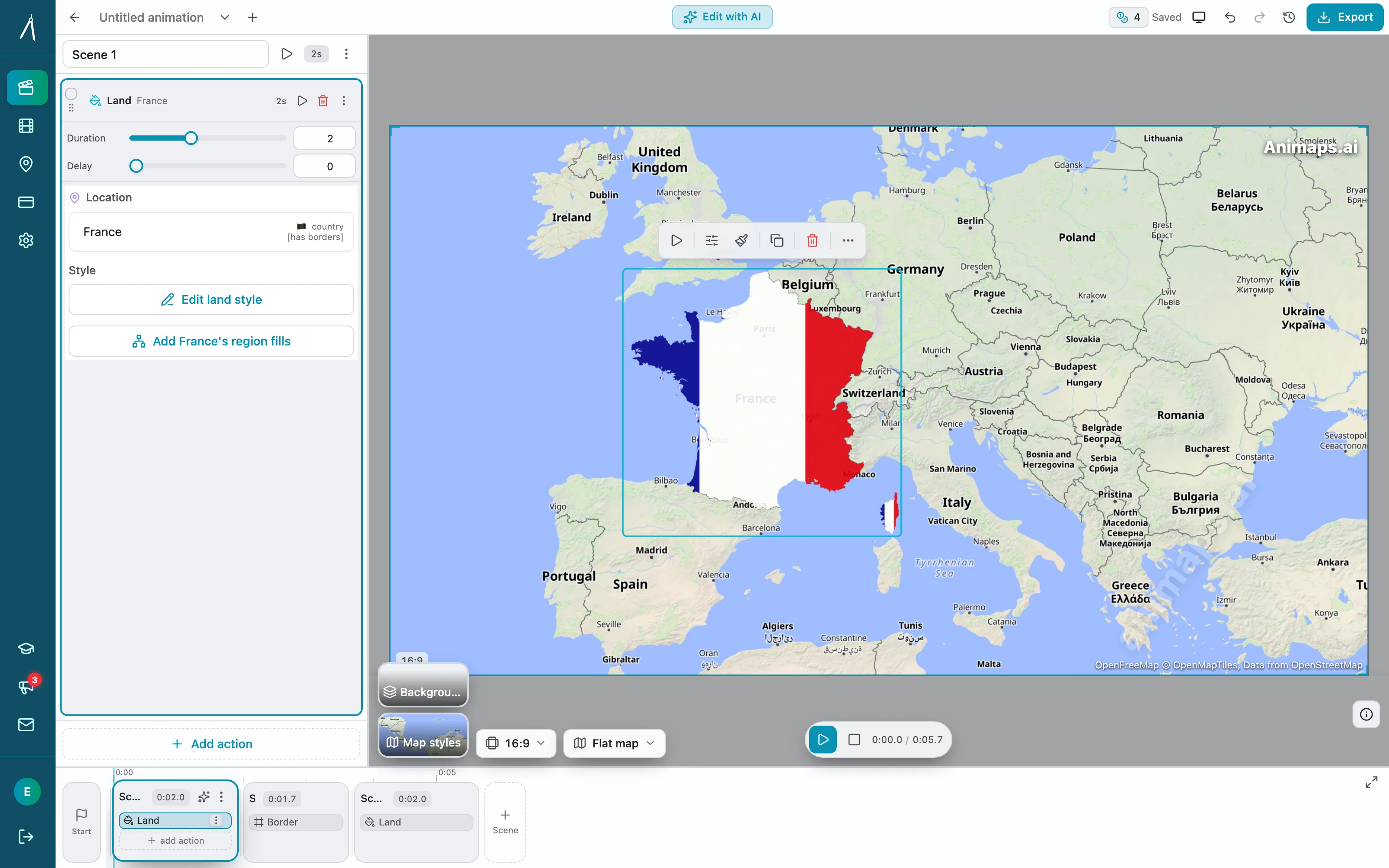
1. Natural Language Flag Requests
Instead of: Download flag → Import → Position → Animate → Export
You type: "Display French flag with fade-in animation"
AI generates: Professional flag overlay, perfectly positioned
2. Geographic Intelligence
```
"Show my Southeast Asia journey"
Animaps automatically:
- Detects countries in your route
- Displays appropriate flags
- Times them to location changes
- Animates professionally
3. Consistent Professional Quality
- All flags from verified sources
- Correct current versions
- Uniform styling across all countries
- Professional animations built-in
- No asset management required
4. Multiple Flag Formats
- Corner overlays
- Lower third integrations
- Map-integrated displays
- Transition elements
- Thumbnail-ready exports
Real-World Use Cases
Use Case 1: Travel Vlog Intro ``` Old way: 2 hours to create intro with country flags Animaps way: 90 seconds
Command: "Show world map, zoom to Southeast Asia, highlight Thailand, Vietnam, Cambodia, display each country's flag"
Export: Professional intro with all flags integrated ```
Use Case 2: Documentary Transition ``` Old way: 30 minutes per transition Animaps way: 60 seconds
Command: "Zoom from France to Germany, fade out French flag, fade in German flag"
Export: Smooth transition with flag change ```
Use Case 3: Year-End Recap ``` Old way: 1 hour to compile all countries/flags Animaps way: 2 minutes
Command: "Show world map, highlight all countries I visited: list of 15 countries, display all flags in sequence"
Export: Professional montage with flag sequence ```
Pricing That Makes Sense
Free Tier:
- 10 animations/month
- All core features
- Flag library access (250+ countries)
- Perfect for testing and occasional use
Pro Tier ($19/month):
- Unlimited animations
- No watermark
- Advanced flag animations
- Icon + flag combinations
- Priority rendering
- Commercial use rights
Compare to alternatives:
- After Effects + flag templates: $25/month + $50 templates + 150 hours learning
- Hiring designer: $100-500 per video
- Animaps: $0-19/month + 0 hours learning + 90 seconds per video
Action Plan: Add Flags to Your Next Video
This Week:
Day 1: Choose Your Method
- Review the 7 methods above
- Select based on your:
- Current skill level
- Available time
- Video type/platform
- Budget
Day 2: Gather Assets OR Sign Up
- Traditional route: Download flag PNGs/SVGs
- Modern route: Sign up for Animaps (free tier)
Day 3: Create Test Flags
- Add flags to existing video (3-5 different positions)
- Review which looks best
- Get feedback from peers
Day 4: Establish Your Template
- Create reusable preset with your chosen style
- Document position, size, timing
- Save for future videos
Day 5: Implement in New Content
- Use your template on fresh video
- Measure impact:
- Engagement rates
- Comments about countries
- Watch time
- Click-through rate (thumbnails)
This Month:
Week 2: Refine Your Style
- A/B test different flag positions
- Try different animation styles
- Measure what resonates with YOUR audience
Week 3: Expand Your Library
- Add flags for all countries you might cover
- Create variations (animated, static, different sizes)
- Organize for quick access
Week 4: Create Signature Style
- Develop consistent flag branding
- Design lower third template with flags
- Build recognition with your audience
The Bottom Line
Adding country flags to videos is no longer optional for serious content creators. It's a professional standard that:
- ✅ Increases viewer comprehension
- ✅ Improves production quality perception
- ✅ Boosts SEO and discoverability
- ✅ Creates visual hierarchy and pacing
- ✅ Makes content more accessible
- ✅ Drives higher engagement
The evolution:
- 2015: Flags were fancy extras only big channels used
- 2020: Flags became expected in travel content
- 2025: Flags are baseline—AI makes them effortless
The creators who thrive aren't the ones spending hours manually positioning flags in After Effects. They're the ones using modern tools that let them focus on storytelling while automation handles the technical execution.
Your choice:
- Spend 30 minutes per video manually adding flags
- Spend 90 seconds generating professional flag sequences with AI
- Skip flags entirely and look less professional than competitors
Most creators will choose option 2. The smart ones are already doing it.
Ready to add professional flags to your videos?
Get Started Today:
Try Animaps Free - Sign Up Here
- No credit card required
- Create your first flag animation in 60 seconds
- 10 free animations to test the system
- 250+ country flags included
- Professional animations built-in
What You Get:
- Natural language interface ("show French flag")
- Automatic positioning and timing
- Multiple animation styles
- Export-ready MP4 files
- No learning curve
- No asset management
Upgrade to Pro When Ready:
- Unlimited flag animations
- No watermark
- Advanced customization
- Icon + flag combinations
- Priority support
- Commercial licensing
The creators adding professional flags to videos in 60 seconds are gaining competitive advantage. Don't let manual workflows hold you back.
Related Articles:
Keywords: add country flags to videos, flag overlay tutorial, video editing flags, country flag animations, professional flag graphics, YouTube flag tutorial, travel video flags, flag lower thirds, animated flags for videos, video production flags
Tags
Related reading
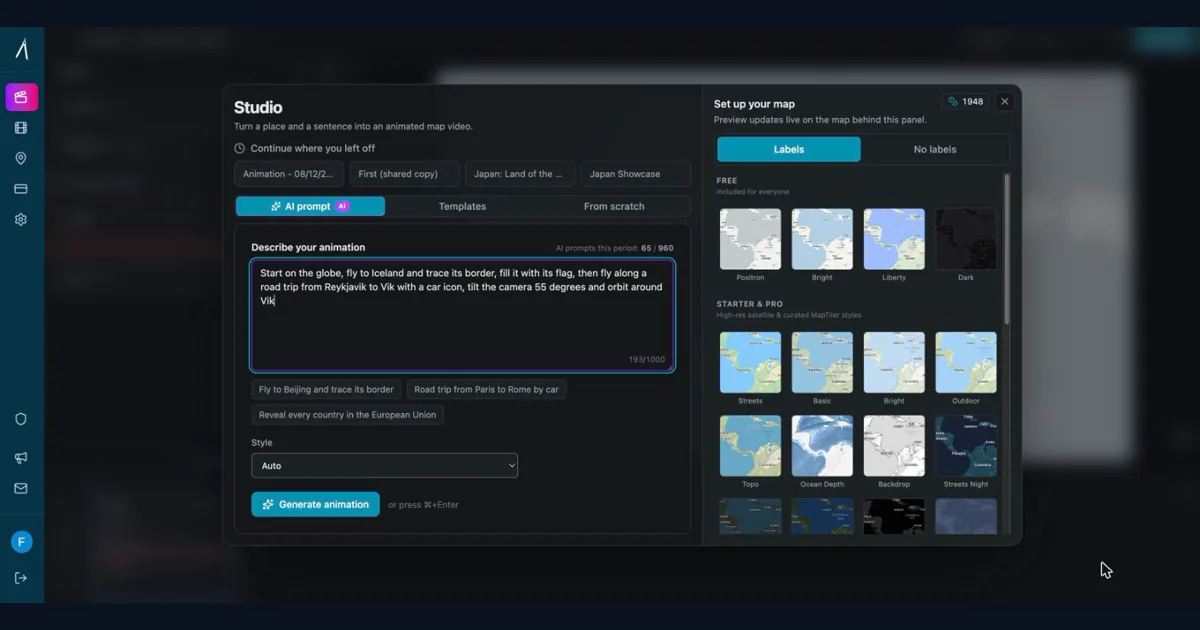
How to Create Professional Map Animations in 60 Seconds (No Experience Required)
Most map animation tools require 30-60 minutes per video. After Effects demands hours of work plus months of learning. Animaps creates professional map animations in 60 seconds using natural language commands. Just type what you want, preview instantly, and export. This guide shows you exactly how the 60-second workflow works with real examples.
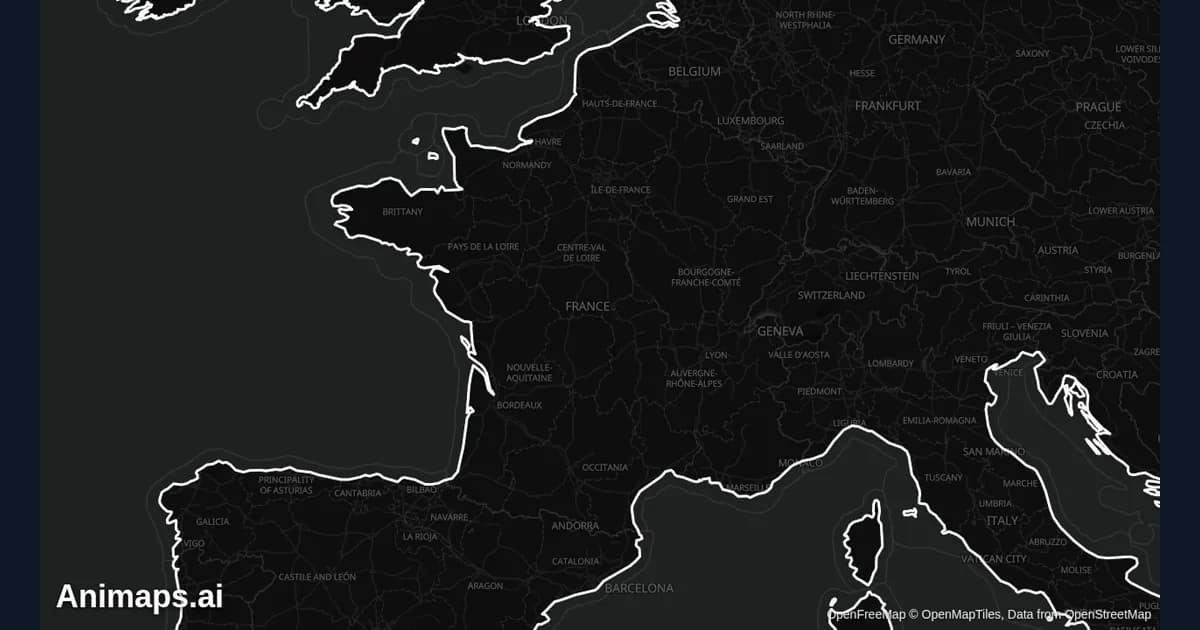
Best Practices for Educational Map Animations
Educational map animations have revolutionized how we teach geography, history, and social studies. When done right, they can transform abstract concepts into visual stories that students remember long after the lesson ends.
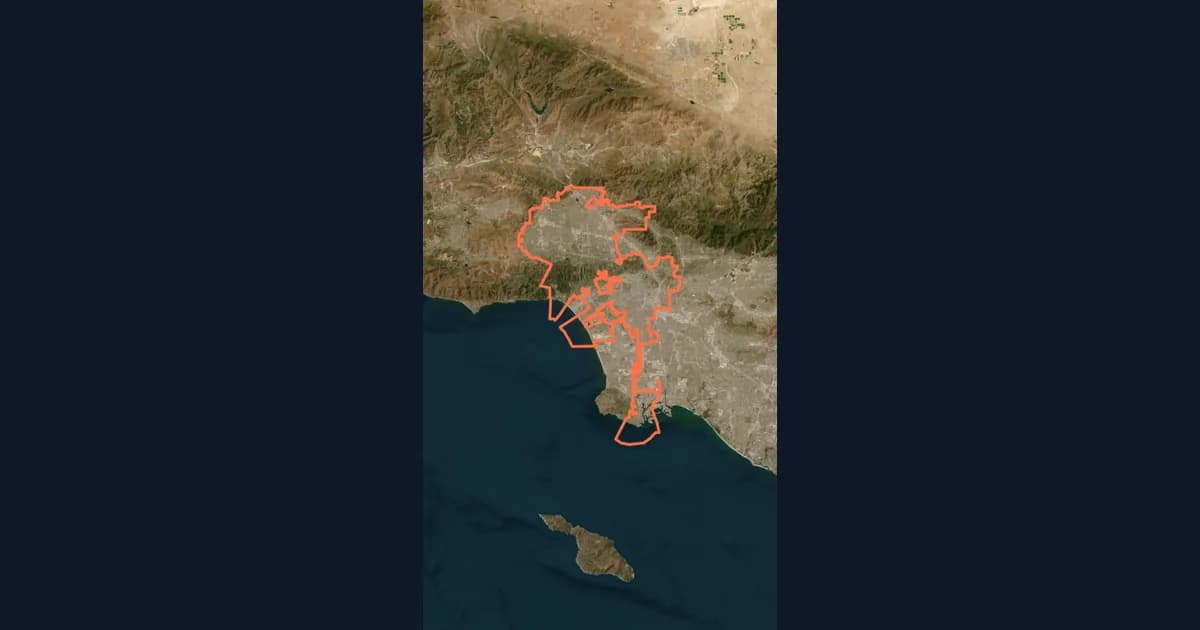
10 Ways Travel Bloggers Use Animated Maps (And How You Can Too)
Travel bloggers face a unique challenge: how do you make someone *feel* a journey they haven't taken? Static photos show destinations. Written stories describe experiences. But animated maps? **They transport viewers into your journey**, transforming passive readers into active participants following along your path. In 2026, animated maps have evolved from nice-to-have embellishments to essential storytelling tools.
Browse every article in the Animaps blog.