How to Create Professional Map Animations in 60 Seconds (No Experience Required)
Step-by-step guide showing how to create professional map animations in 60 seconds using Animaps AI. No design skills, no software installation, no rendering wait.
Preview & Editor advantage
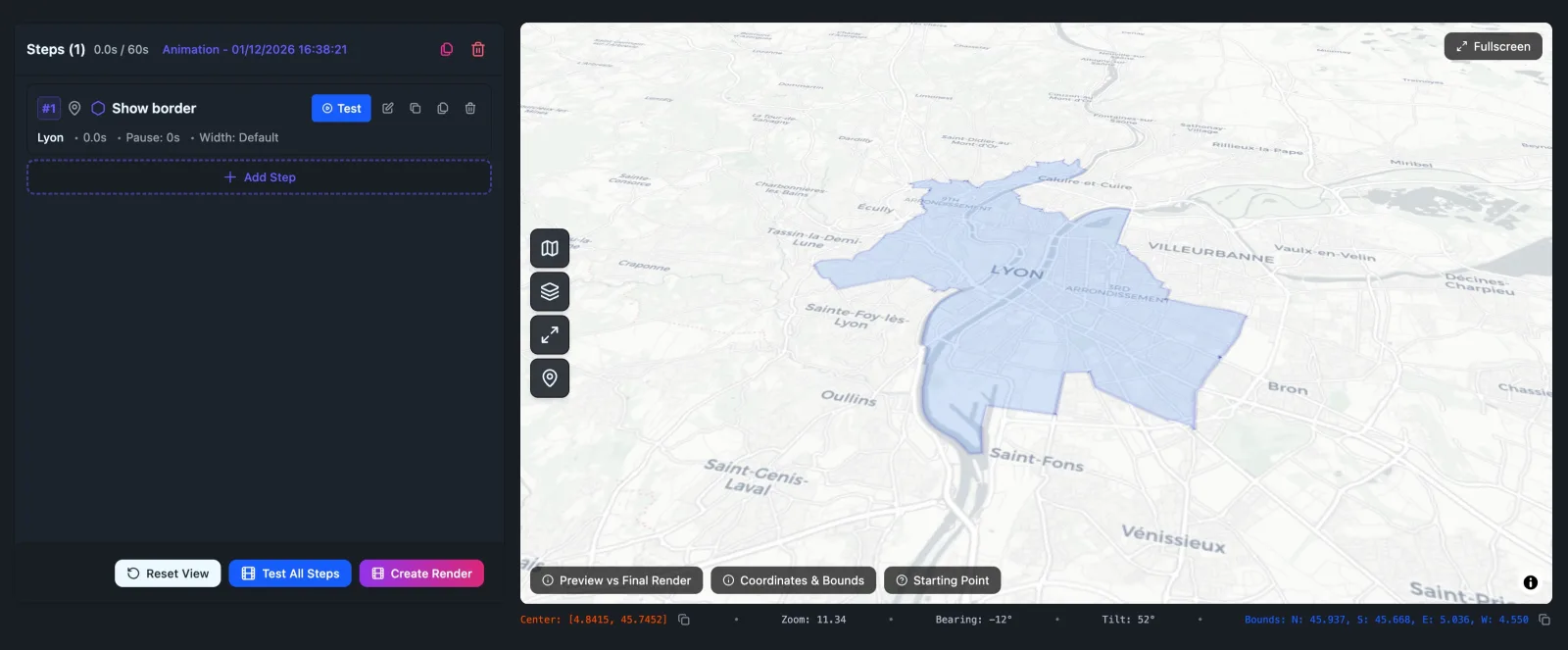
Draft with AI prompts or templates, then refine every animation step in real time (zoom, opacity, border width, colors, bearing, tilt). Credits are used only when you render the final video.
Animaps Team
Content Creator
How to Create Professional Map Animations in 60 Seconds (No Experience Required)
Last updated: December 20, 2025
TL;DR
You can create professional map animations in 60-90 seconds using AI-powered tools like Animaps. Simply type what you want in natural language (e.g., "Zoom to France, highlight Paris, show French flag"), preview instantly, and export. No design skills, software installation, or learning curve required.
Workflow:
- Type command (10 seconds)
- Preview animation (10 seconds)
- Export video (30-40 seconds)
- Total: 60-90 seconds
Comparison:
- AI-powered tools: 60-90 seconds, 0 min learning
- Manual tools: 5-15 minutes, 15-30 min learning
- After Effects: 45-75 minutes, 150+ hours learning
Related reading:
- Map animation maker hub: Create animated maps online
- Border animations: How to animate country borders on maps
- Comparison hub: Map animation maker alternatives
Most map animation tools require 30-60 minutes per video. After Effects demands hours.
AI-powered tools like Animaps create professional map animations in 60 seconds using natural language commands.
This guide shows you exactly how.
The 60-Second Workflow
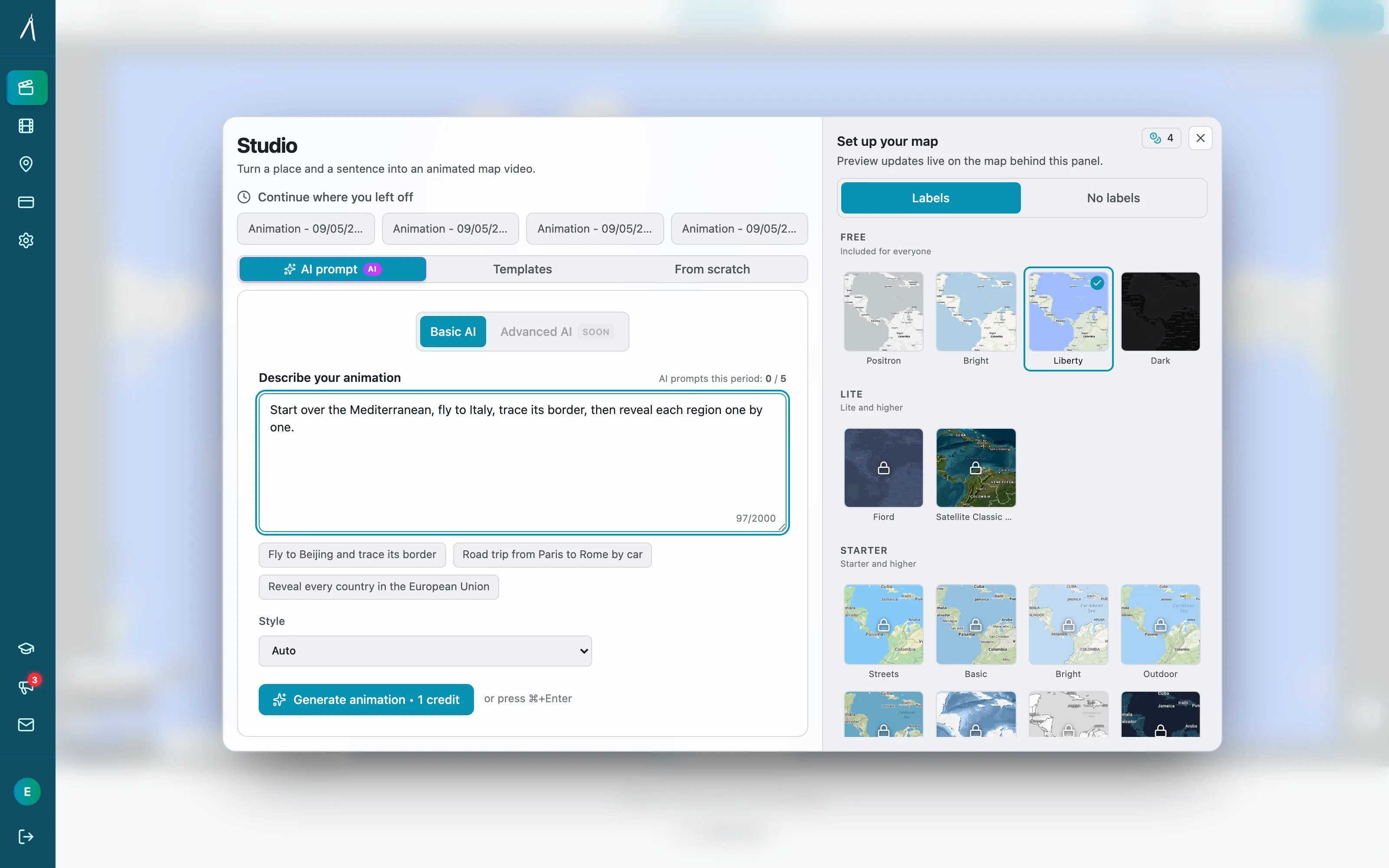
Step 1: Type What You Want (10 seconds)
Open Animaps and type your command in plain English:
Examples:
- "Highlight Thailand and display Thai flag"
- "Zoom to Paris, place Eiffel Tower icon"
- "Show Scandinavia, highlight Norway, Sweden, Denmark, Finland, Iceland, display each country's flag and capital city"
- "Start from the world, zoom to north america, fly to Canada while tilting camera 60 degrees, trace its borders, fill with flag, zoom to Ottawa, add ‘capital’ label, orbit around the city, fly to US, highlight Washington d.c., move plane icon from Ottawa to Washington"
No technical knowledge. No coordinates. Just describe what you want to see.
Step 2: Preview Almost Instantly
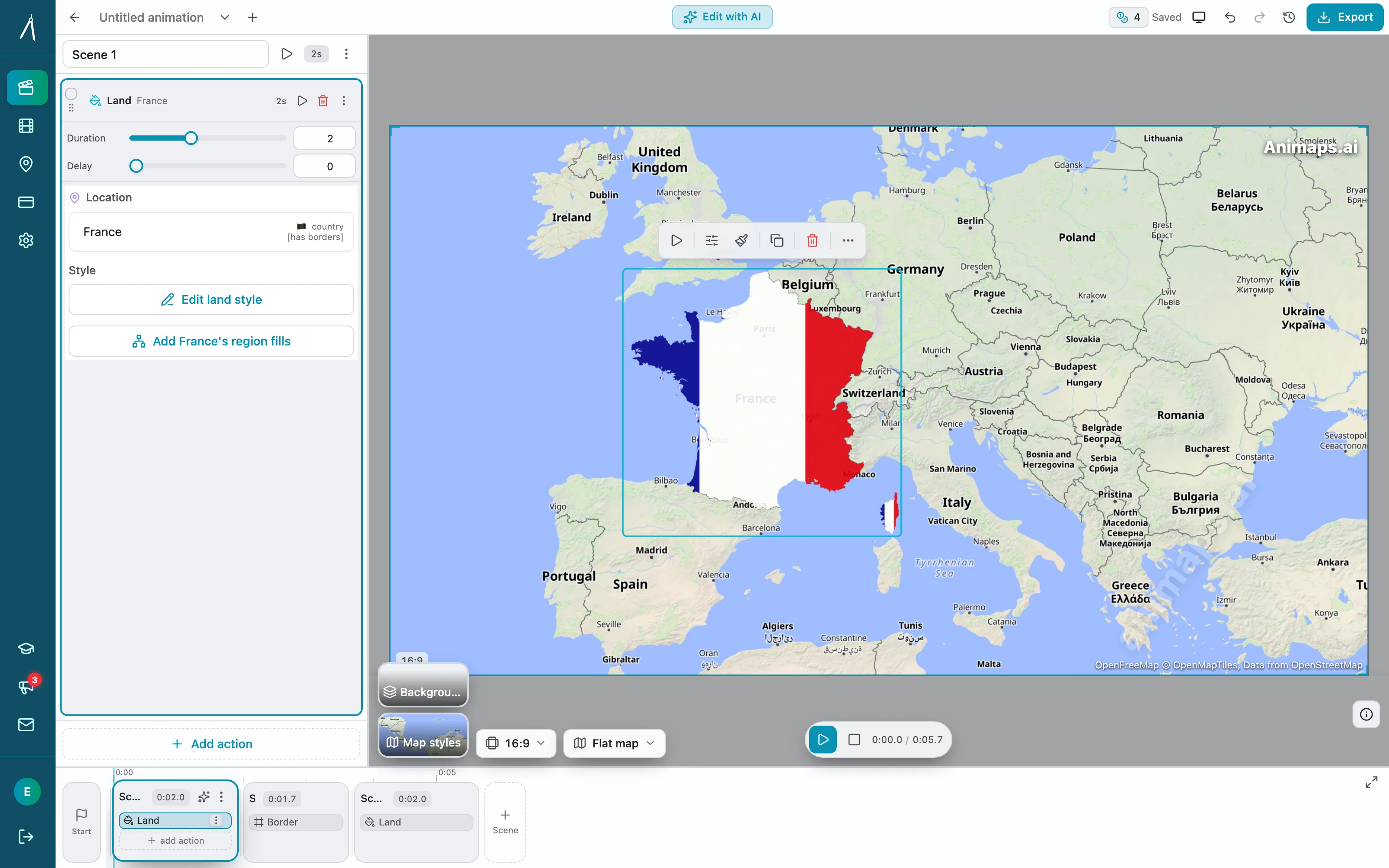
Click "Generate" and watch your animation appear in less than 30 seconds.
The AI:
- Finds all locations automatically
- Creates smooth camera movements
- Adds visual elements (flags, icons, highlights)
- Times everything professionally
No rendering. No waiting. Instant preview.
Step 3: Export (30 seconds to 5 minutes)
Click "Export," choose your format, and download.
Export options:
- Resolution: 720p, 1080p
- Format: MP4 or GIF
- Aspect ratio: 16:9 (YouTube), 9:16 (Stories), 1:1 (Instagram)
- Frame rate: 30fps or 60fps
Total time: 5 minutes from idea to finished video.
Real-World Examples
Example 1: Travel Route (60 seconds)
Command: "Show flight from New York to Paris with plane icon"
What happens:
- AI finds both cities (5 seconds)
- Creates smooth camera path (3 seconds)
- Adds animated plane icon (2 seconds)
- Generates animation (3 seconds)
- Export 1080p video (30 seconds)
Result: Professional travel animation ready for YouTube intro.
Example 2: Geography Lesson (45 seconds)
Command: "Zoom to Africa, highlight Egypt, show Egyptian flag"
What happens:
- AI locates Africa and Egypt (2 seconds)
- Creates zoom animation (3 seconds)
- Adds highlight overlay (2 seconds)
- Places Egyptian flag (2 seconds)
- Export for classroom presentation (30 seconds)
Result: Educational visual for geography class.
Example 3: News Context (60 seconds)
Command: "Fly and rotate -40 degrees to Southeast Asia, tilt 45 degrees, highlight Vietnam and Cambodia, and rotate bearing for 90 degrees"
What happens:
- AI finds region and countries (5 seconds)
- Creates establishing shot (4 seconds)
- Highlights both countries (5 seconds)
- Export 9:16 for Instagram Story (45 seconds)
Result: News context visual ready to publish.
What Makes 60 Seconds Possible?
1. Natural Language AI
Type commands like you're talking to a person:
Works: "Zoom to France" Also works: "Show me France" Also works: "Go to France" Also works: "Focus on France"
The AI understands intent, not just exact syntax.
2. Pre-Loaded Geographic Database
180,000+ locations ready instantly:
- All 195 countries
- Major cities worldwide
- Landmarks and natural features
- Continents and regions
- Oceans, mountains, deserts
No manual coordinate entry. No location searching. Just type the name.
3. Instant Preview Engine
See results immediately without rendering:
- No RAM preview
- No export-to-see workflow
- Changes appear in real-time
- Iterate until perfect (free iteration doesn't cost credits)
4. Optimized Export
Smart export system:
- Pre-rendered templates speed up processing
- Cloud processing handles heavy lifting
- Multiple formats export simultaneously
- Typical export: 30-60 seconds
Compare: 60 Seconds vs. Traditional Methods
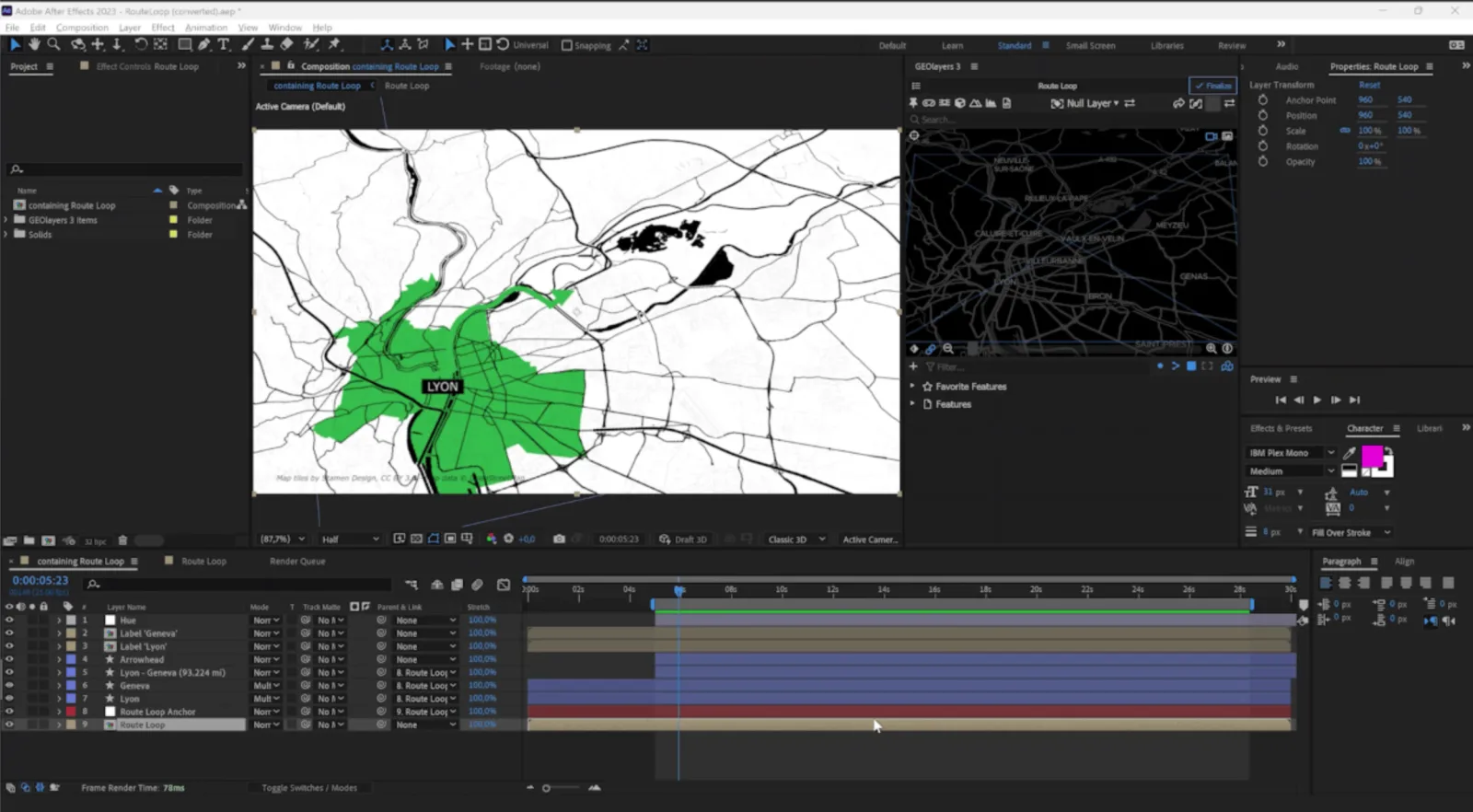
Traditional Workflow (After Effects)
Time: 45-90 minutes
- Launch After Effects (2 minutes)
- Create new composition (1 minute)
- Install/configure GEOlayers (15 minutes first time)
- Find location coordinates (3 minutes)
- Import map tiles (2 minutes)
- Create camera keyframes (10 minutes)
- Adjust easing curves (8 minutes)
- Add highlights/graphics (12 minutes)
- RAM preview (2 minutes)
- Make adjustments (10 minutes)
- Export render (5 minutes)
Total: 60+ minutes (and requires 150+ hours of learning first)
Animaps AI Workflow
Time: 60 seconds
- Type command (10 seconds)
- Preview adjustments (5 minutes)
- Export (45 seconds)
Total: 6 minutes (zero learning curve)
Time saved: 60 minutes minimum per animation
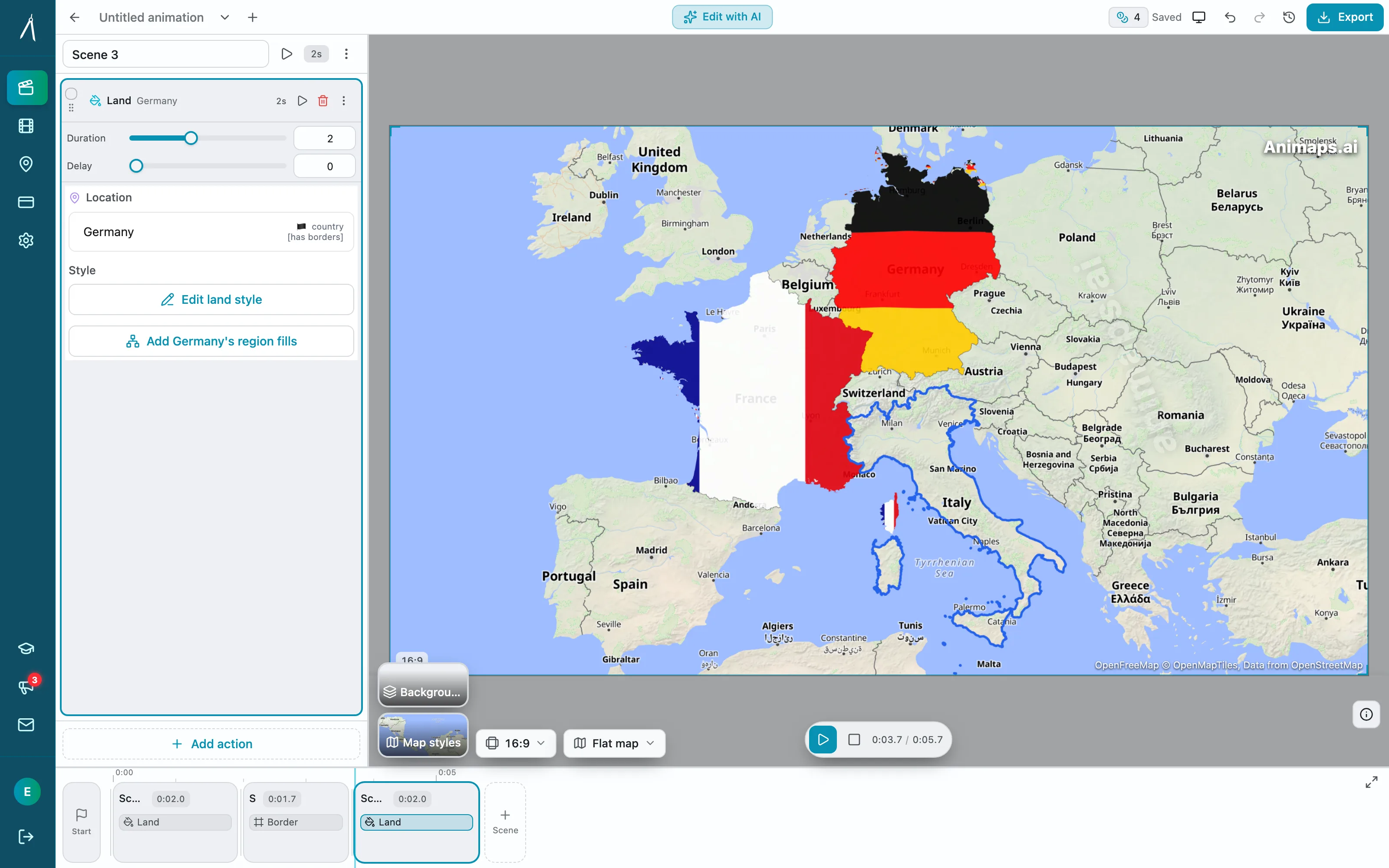
Beyond 60 Seconds: Editor
Need more control? Switch to Editor:
When to use Editor:
- Fine-tune timing (add 2-3 minutes)
- Adjust camera angles (add 3-5 minutes)
- Customize colors (add 1-2 minutes)
- Perfect for brand guidelines (add 5-10 minutes)
Total time with manual editing: 5-15 minutes
Still 3-6x faster than traditional tools.
The advantage: Start with AI (60 seconds), switch to manual only when needed.
Templates: Even Faster Than 60 Seconds
Create once, reuse forever:
Creating a Template (one time: 5 minutes)
1. Design your perfect animation
2. Save as template
3. Name it (e.g., "Weekly Country Feature")
Using Template (10 seconds)
1. Load template
2. Change location name
3. Export
Result: 10-second animations for recurring content
Perfect for:
- Weekly series (same format, different locations)
- Brand-consistent content
- Batch production
- Social media schedules
Pricing for 60-Second Animations
Free Tier
- 12 credits/month
- Cost: $0
- Perfect for: Testing, occasional use
Starter Tier
- 50 animations/month
- Cost: $9.90/month or $99/year
- Perfect for: Regular creators, educators
Pro Tier
- Up to 2,000 animations/year
- Cost: $19.90/month or $199/year
- Perfect for: High-volume creators, agencies
Cost per animation:
- Free: $0
- Starter: $0.20 each (yearly) to $0.99 (monthly)
- Pro: $0.10 each (yearly) to $0.20 (monthly)
Compare: Hiring a motion designer: $50-150 per animation
Real Creator Results
Travel Vlogger (15 maps/month)
Before Animaps:
- 15 animations × 45 minutes = 11.25 hours/month
- Cost: $300/year (After Effects)
With Animaps:
- 15 animations × 60 seconds = 15 minutes/month
- Cost: $199/year (Pro)
Savings: 11 hours/month + $101/year
Geography Teacher (30 maps/semester)
Before Animaps:
- Outsourced to designer: $50 × 30 = $1,500/semester
- Wait time: 2-3 days per animation
With Animaps:
- Create instantly during lesson prep
- Cost: $99/year (Starter)
Savings: $1,401/semester + immediate availability
Social Media Manager (8 maps/month)
Before Animaps:
- 8 animations × 60 minutes = 8 hours/month
- Hourly rate: $30 × 8 = $240/month value
With Animaps:
- 8 animations × 60 seconds = 8 minutes/month
- Cost: $9.90/month
ROI: Pays for itself in time saved in first hour
Common 60-Second Use Cases
YouTube Video Intros
Command: "Zoom to [country], highlight [city]"
Export: 16:9, 1080p, 5 seconds
Use: Channel intro establishing location
Instagram Stories
Command: "Show [region], place [emoji] on [location]"
Export: 9:16, 1080p, 3 seconds
Use: Travel story location marker
Educational Slides
Command: "Highlight [countries] in different colors"
Export: 16:9, 720p, 8 seconds
Use: PowerPoint/Google Slides animation
News Graphics
Command: "Zoom to [region], highlight [area]"
Export: 16:9, 1080p, 4 seconds
Use: Breaking news location context
Social Media Posts
Command: "Show world, zoom to [city], show flag"
Export: 1:1, 1080p, 6 seconds
Use: Instagram feed post
Tips for Faster Creation
1. Use Specific Commands
Good: "Zoom to California, show flag"
Better: "Zoom to California, show California flag"
More detail = fewer adjustments needed
2. Leverage Free Iteration
Refine your command until perfect:
- Try different wordings
- Adjust sequence
- Test timing descriptions
- Doesn't cost credits until you export
3. Save Successful Commands
Keep a list of commands that work well:
- Copy-paste for similar projects
- Modify slightly for variations
- Build your personal template library
4. Choose Format Before Exporting
Decide aspect ratio first:
- YouTube/Website: 16:9
- Instagram/TikTok Stories: 9:16
- Instagram Feed: 1:1
Avoids re-exporting same animation
Getting Started (Right Now)
Minute 0-1: Sign Up
Visit animaps.ai, create free account (no credit card)
Minute 1-2: First Animation
Type: "Zoom to NYC"
Click Generate
Watch it appear
Minute 2-3: Customize
Try different commands:
- Add a flag
- Change colors
- Place an icon
Minute 3-4: Export
Choose format and download
Minute 4-5: Use It
Upload to your project
In 5 minutes: You've learned the tool AND created your first animation.
Frequently Asked Questions
Q: Is 60 seconds realistic? Yes, for simple animations (zoom, highlight, flag). Complex sequences take 2-3 minutes. Manual editing adds 5-15 minutes.
Q: What if the AI doesn't understand my command? Rephrase it. "Zoom to Paris" works as well as "Show me Paris" or "Go to Paris, France."
Q: Can I slow down or speed up animations? Yes, in Editor. Takes 30 seconds to adjust duration.
Q: Do I need design skills? No. AI handles all visual design. You just describe what you want.
Q: What about unique locations? 180,000+ locations included. If missing, Editor lets you set any coordinate.
The Bottom Line
60 seconds is real.
For standard map animations (zoom, highlight, flag, icon), you can go from idea to finished video in one minute.
No learning curve. No software installation. No rendering wait.
Just type what you want and export.
Traditional tools require 30-90 minutes per animation plus months of learning. Animaps delivers the same professional quality in 60 seconds.
The question isn't "Can I really create maps in 60 seconds?" It's "Why would I spend 60 minutes doing what takes 60 seconds?"
Try it yourself:
Free tier includes:
- 12 credits/month
- Full feature access
- All 180,000+ locations
- Every export format
- No credit card required
Create your first 60-second animation now: animaps.ai
Related Articles:
Keywords: create map animations fast, 60 second map animation, quick map animation tool, animaps speed, fast map creation, instant map animation, AI map generator, map animation tutorial
Tags
Related reading
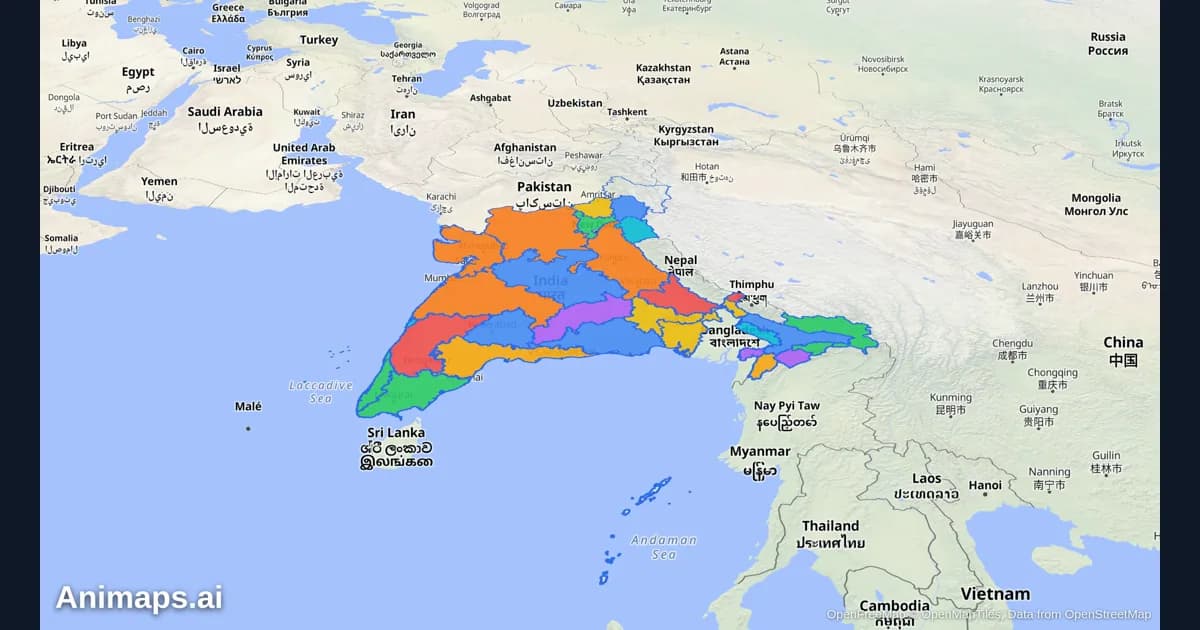
AI-Powered Map Animations vs Traditional Methods: A Complete Comparison
Creating map animations used to require expensive software, hours of manual work, and specialized skills. But AI-powered tools are changing the game. Let's compare the old way with the new way.
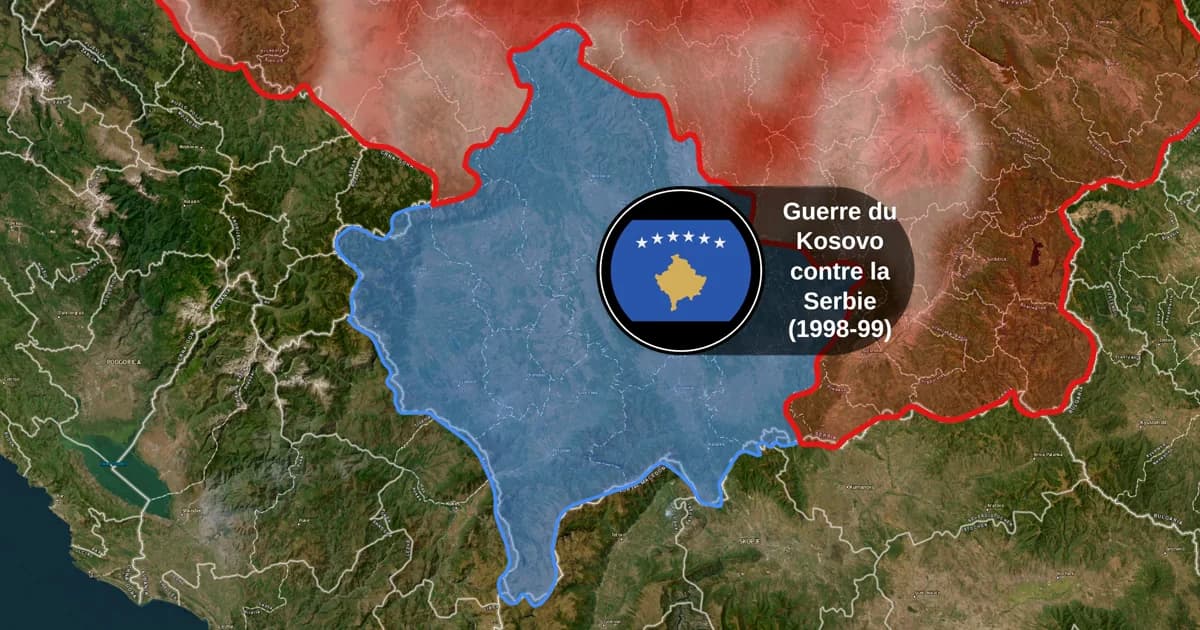
Map Animation Tools: How to Create Animated Maps in 2026
A map animation tool turns a place and a sentence into a moving map video - camera flights, country borders, flag fills, routes, labels - without After Effects, plugins or keyframes. Here is what to look for, and what Animaps does.
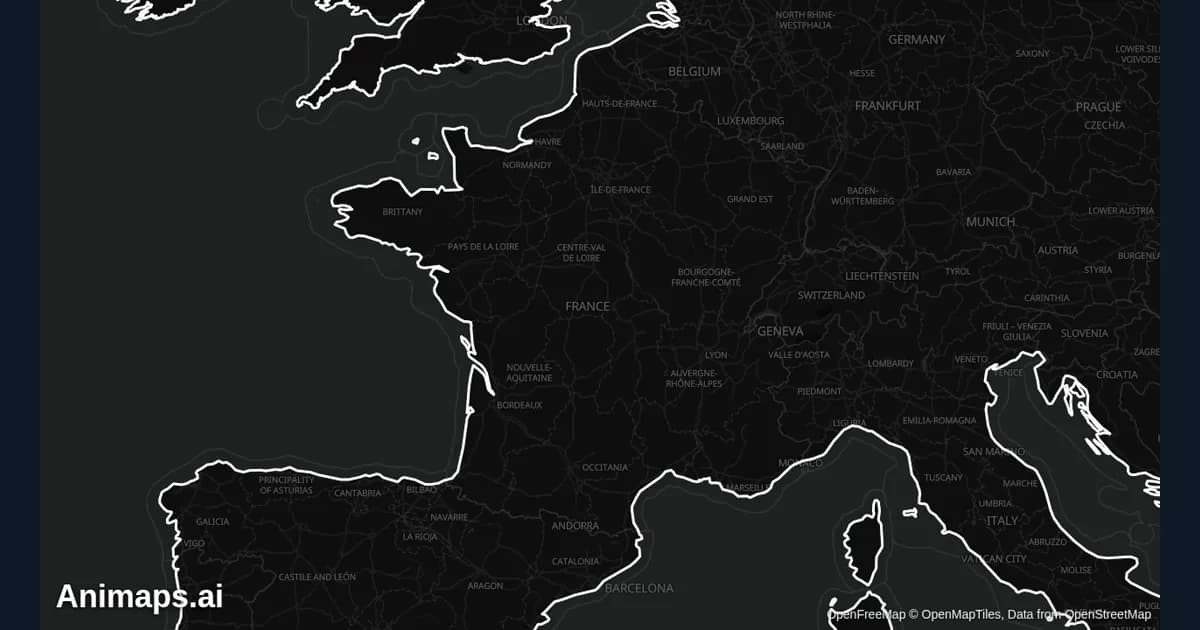
How to Create Map Animations for YouTube Videos: The Complete 2026 Guide
Map animations have become the secret weapon of successful YouTube creators. From travel vloggers showcasing epic journeys to educational channels explaining world events, animated maps transform dry geographic information into captivating visual stories that keep viewers engaged. Vox's channel grew from 50,000-150,000 daily views to 1-3 million daily views after they started incorporating more map animations into their content.
Browse every article in the Animaps blog.