How to Make Vox-Style Map Animations Without After Effects
Make explainer-style map animations in your browser: a paper-like map, traced borders, short labels, slow camera pushes and shaded surroundings.
Animaps Team
Content Creator
Explainer channels made one map look famous: a paper-like map, a border that lights up, a short label, a slow push in. You can build that look in a browser with the map animation maker, with no After Effects and no keyframes.
TL;DR
Short version: The explainer map style has five parts. A calm, paper or print looking map. One region that stands out (a traced or pulsing border, a fill). Short labels. Slow camera pushes toward the place the narrator is talking about. Dim surroundings, so the eye goes to the subject. In Animaps you get the paper look from a map theme such as Vintage Parchment or Doc Archive, the border from the Border step, the push from Fly to, and the dimming from Shade. You type the scene as a sentence, or you build it step by step, then export an MP4.
Quick links:
- Border tools: Map border animation guide
- Camera: How to fly the camera to any location
- Text on the map: Label tutorial
- Geopolitics scenes: Geopolitics map animation guide
What Makes the Explainer Map Style
Large explainer channels on YouTube use maps in a very recognizable way. The map is never busy. It looks printed, or scanned from an old atlas. Then one thing moves at a time: a border draws itself, a country turns a single color, a line crosses a sea. A narrator explains what you see, and the map waits for the words.
The style is popular because it is easy to follow. A viewer who knows nothing about the topic still sees where the story happens, and what changed. It is a style reference, not a brand: any channel can use it.
The classic way to make it is After Effects, with a map image, masks, a texture layer and many keyframes. Each scene can take hours. In a map animation tool the map, the borders and the camera already exist, so a scene takes minutes.
The Five Parts, and the Animaps Step for Each
1. A paper or print looking map
Open the Map themes panel. A theme sets the map style, the label design, the border and fill colors and a frame finish in one click. For this look, try:
- Vintage Parchment, for an old atlas feel.
- Doc Archive, for ink and dull gold on light paper.
- Editorial Ivory, for a clean print look with a quiet palette.
You can also pick a map style alone. The style list has light, dark, satellite and artistic styles. > [!NOTE] Artistic styles > Some artistic styles, such as Antique (a vintage atlas on aged paper), Kraft (ink on kraft paper) and Newspaper, come with paid plans.
Animaps has 31 map styles in total.
2. One region that stands out
The Border step shows, traces or pulses the outline of a country, a region or a historical territory.
A trace draws the outline around the shape. It is the moment viewers remember.
A pulse makes the border breathe. It works while the narrator talks.
The Land step fills the inside of a region with a color. Use one strong color for the subject, and leave the rest of the map plain.
3. Short labels
The Label step puts a name on the map, with a marker such as a pin or a dot. Keep labels to one to three words: "Crimea", "Strait of Hormuz", "1914". The Text step writes a longer block, on the map or fixed to the frame, for a date or a short quote.
4. Slow camera pushes
Fly to moves the camera to a place. For this style, keep the move slow (4 to 6 seconds) and use a soft easing, so the camera glides in. A small tilt at the end adds depth without looking like a game.
5. Dim everything else
The Shade step darkens the map outside a region.
It is the fastest way to say "look here".
Build One Scene, Step by Step
Here is a 20 second scene about the Suez Canal.
- Pick the Vintage Parchment theme.
- Start on a wide view of the Mediterranean and the Red Sea. Hold it 3 seconds.
- Fly to Egypt in 5 seconds, with a slight tilt at the end.
- Trace the border of Egypt in 3 seconds.
- Shade everything outside Egypt.
- Add a label "Suez Canal" with a pin on the canal.
- Draw a route by sea from Port Said to Suez, 4 seconds.
- Hold the final view 3 seconds, so the narrator can finish the sentence.
- Preview, adjust a duration or two, and export.
Or type the whole scene as one prompt:
The AI turns the prompt into steps. You can then change any step by hand before you export. The AI map prompts guide explains how to write prompts that work.
More Prompts to Copy
Old atlas style. Show Europe in 1914, then trace the border of Austria-Hungary and label it. Hold 3 seconds.
Print style map. Fill Panama in red, shade the rest of Central America, and label the Panama Canal.
Vintage map. Start on the whole of Africa, then fly to Ethiopia, trace its border and add the text "Landlocked since 1993".
Borders From the Past
Many explainer videos are about history: an empire, a treaty, a war. Animaps has 25,400+ historical border snapshots, so you can show the border of an old empire or kingdom at a given year without drawing it. The Historical step can also play a border timelapse, where a territory grows or shrinks across the years. See the border timelapse tutorial and the Rise of the Ottoman Empire demo.
Tips That Keep the Style Clean
- One idea per scene. If the narrator talks about two places, make two scenes.
- One accent color. Red or orange for the subject, everything else in the paper tones.
- Let the map wait. Add a Pause of 2 to 3 seconds after each reveal, so the voice can catch up.
- Write the script first. Time each scene to the sentence it shows.
- Keep the angle simple. Change tilt on the last move of a scene only.
- Name places the viewer will hear. If the narrator says "the Bosphorus", the label says "Bosphorus".
Where the Video Goes Next
Export each scene as an MP4 in 16:9 for YouTube, or 9:16 for Shorts. Then put the scenes on your editing timeline, under your voice track.
For a full channel workflow, read how to create map animations for YouTube. If you are weighing the classic route, the Animaps vs After Effects comparison covers the time and the trade-offs.
FAQ
Can I make Vox-style map animations without After Effects? Yes. A map animation tool already has the map, the borders and the camera. You choose a paper-like theme, add border, label and camera steps, and export an MP4.
Is there a paper texture map style? Yes. Map themes such as Vintage Parchment and Doc Archive give a paper or archive look. Artistic map styles such as Antique and Kraft come with paid plans.
Can I highlight one country and dim the rest? Yes. Trace or pulse its border with the Border step, fill it with the Land step, then use Shade to darken everything outside it.
Can I show old borders? Yes. Animaps has 25,400+ historical border snapshots, and the Historical step plays a border timelapse across years.
Can I add my narration in Animaps? No. Record your voice and add music in your video editor, then place the exported map scenes on the timeline.
Tags
Related reading
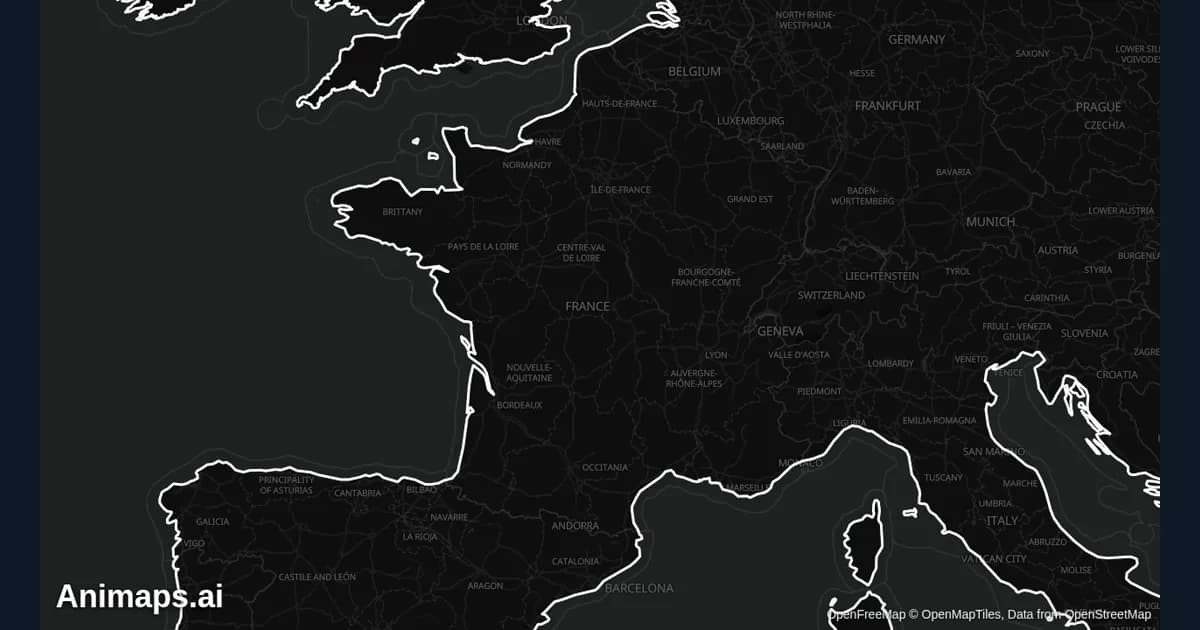
How to Create Map Animations for YouTube Videos: The Complete 2026 Guide
Map animations have become the secret weapon of successful YouTube creators. From travel vloggers showcasing epic journeys to educational channels explaining world events, animated maps transform dry geographic information into captivating visual stories that keep viewers engaged. Vox's channel grew from 50,000-150,000 daily views to 1-3 million daily views after they started incorporating more map animations into their content.
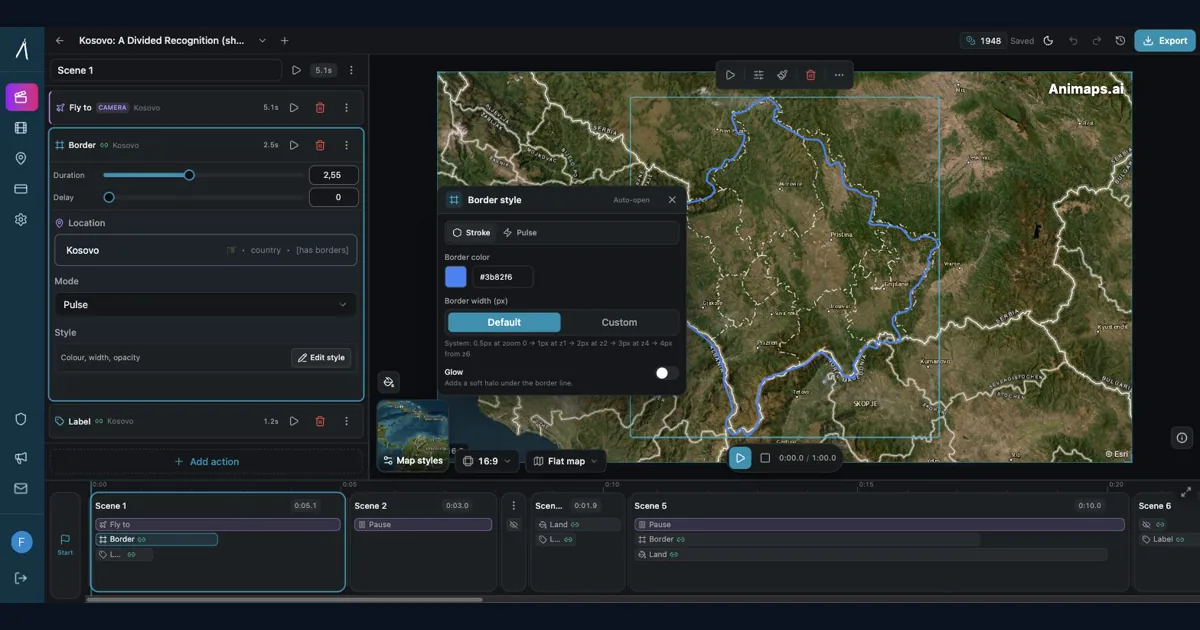
Animaps vs After Effects: Which Tool Should You Choose for Map Animations?
You're choosing between Animaps and After Effects for map animations. Both create professional results, but they're designed for completely different users. Animaps takes 60 seconds to 10 minutes per animation with zero learning curve. After Effects takes 45-90 minutes per animation after a 150-hour learning investment. This comparison examines time, costs, features, and use cases to help you decide.
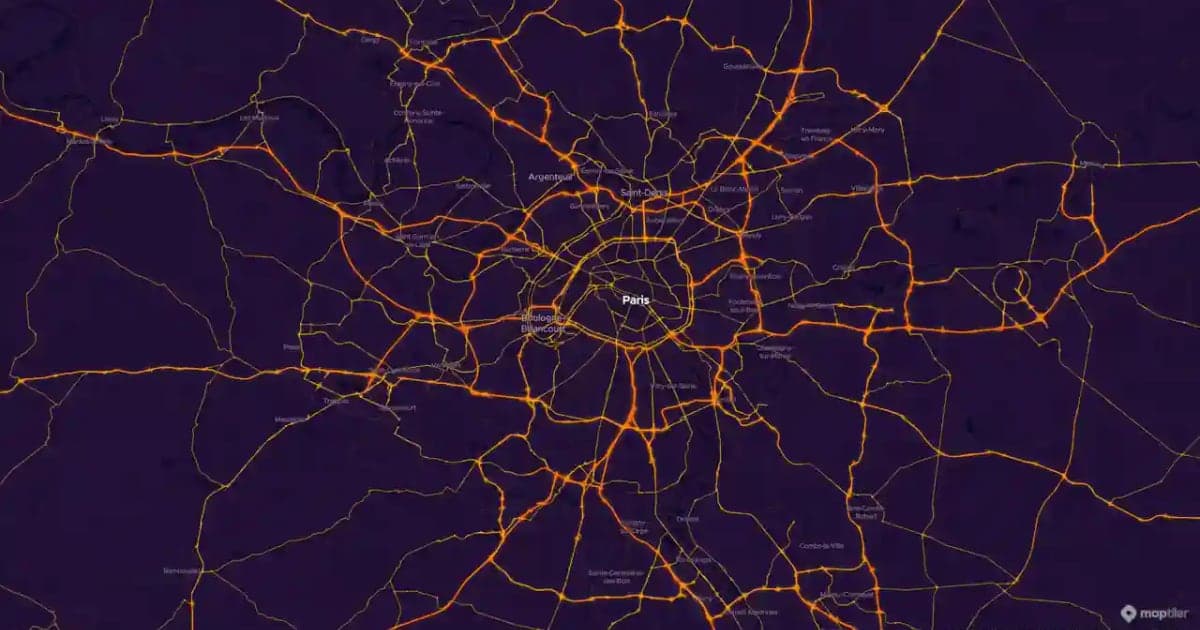
Map Motion Graphics: How to Make Them Without After Effects
Map motion graphics are the moving maps of documentaries, explainers and news: a camera that flies, a border that draws itself, a route that crawls across the map. Here is how to make them without After Effects, eight prompts you can copy, and how to drop the clips into your edit.
Browse every article in the Animaps blog.