Map Motion Graphics: How to Make Them Without After Effects
How to make map motion graphics in your browser: fly-ins, border reveals, routes, highlights and globe spins, with prompts to copy and export tips.
Animaps Team
Content Creator
Plan details come from animaps.ai/pricing on the "Last updated" date above.
Map motion graphics used to mean After Effects, a map plugin and a long night of keyframes. Not anymore. Type one sentence, watch the camera fly and the borders draw, and drop the MP4 into your edit. You can make your first one free, in your browser, in the next five minutes.
TL;DR
Short version: Map motion graphics are the moving maps you see in documentaries, explainers and news: a camera that flies across the world, a border that draws itself, a route that crawls from city to city, a country that lights up. You can make them in Animaps without After Effects. Describe the shot or build it step by step, preview it for free in your browser, then export an MP4 in 16:9, 9:16 or 1:1. The Free plan gives you 12 credits every month, with no credit card.
Quick links:
- Start free now: Create your free account, no credit card
- See them move: Map animation examples
- Prompts to copy: AI map prompts guide
- Coming from After Effects? Map animation vs After Effects
This guide covers:
- What map motion graphics are, and the shots editors use most
- How to make them without After Effects, step by step
- Eight map motion graphics you can make today, with prompts
- How to make them look designed, not default
- How to drop them into Premiere, DaVinci Resolve, Final Cut or CapCut
- What it costs, and where Animaps stops
What Map Motion Graphics Are
A map motion graphic is a short, designed map shot that moves. It is not a still map with a zoom added later. The map itself is the animation: the camera, the lines, the colors and the text all change over time.
Editors use a small set of shots again and again:
- The fly-in. The camera starts wide on the world and flies to one place.
- The border reveal. A country or region outline draws itself, or pulses to grab attention.
- The highlight. A country fills with a color or its flag while its neighbors stay quiet.
- The route. A line draws from A to B, often with a plane, a ship or a car riding on it.
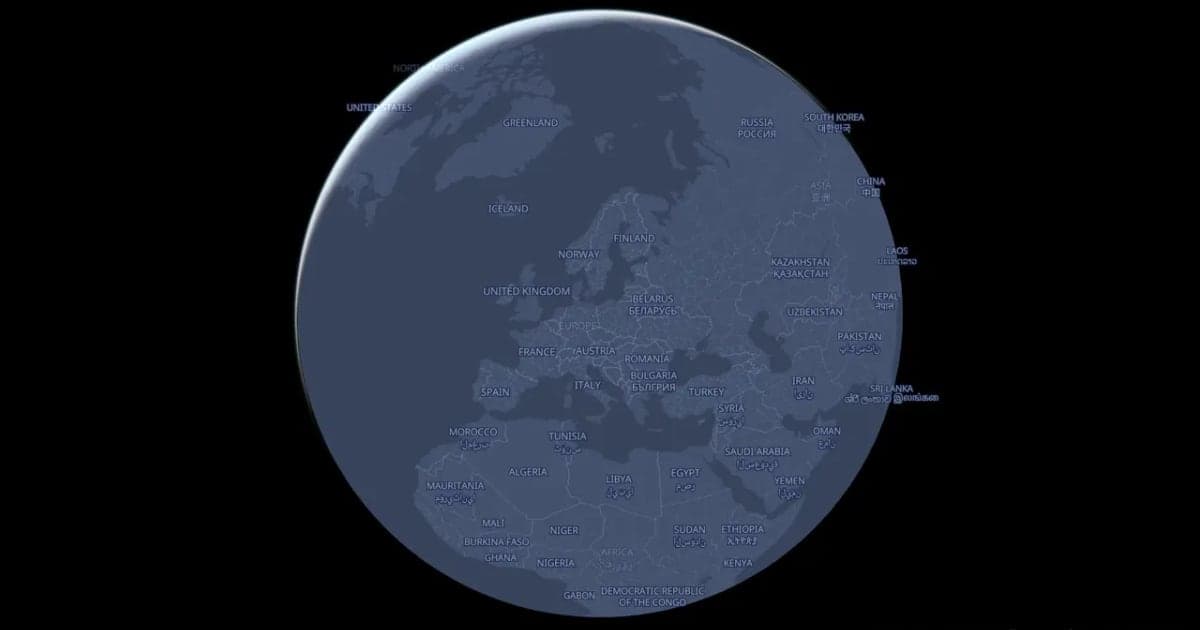
- The globe spin. The Earth turns, then the camera lands on the place the story is about.
- The callout. A label, an icon or a magnifier points at one city.
Put three or four of these in a row and you have the map sequence of a travel video, a history explainer or a news report.
The Old Way and the New Way
The old way: open After Effects, add a map plugin, find map data, style it, then set keyframes for every camera move and every line. Then render, spot a mistake, fix it and render again. It works, and it gives full control. It also takes hours, a paid subscription and real motion design skill.
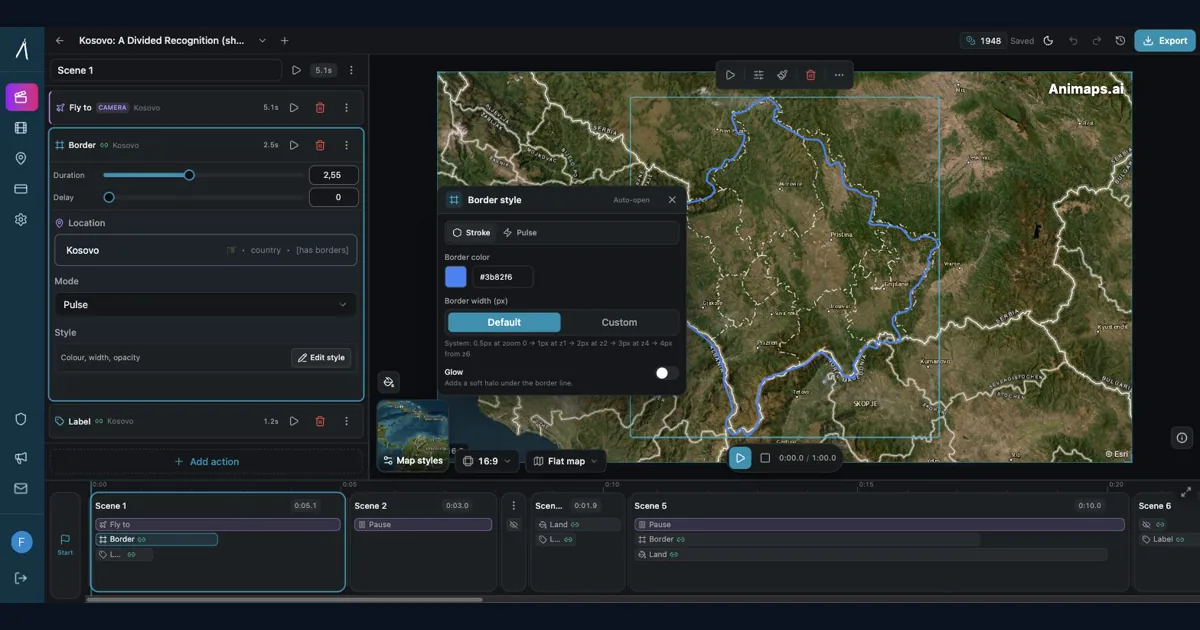
The new way: the map engine does the drawing. In Animaps, each shot is a step: "fly to Japan", "trace the border of Japan", "add a label on Tokyo". The engine draws every step from real map data. You never place a keyframe. You change the step, and the preview updates right away.
If you already know After Effects, you can still use it. Make the map shot in Animaps, then finish it in your editor with your own titles and sound. The map animation vs After Effects guide compares the two in detail.
How to Make Map Motion Graphics, Step by Step
- Sign up free. Create your account. No credit card, nothing to install.
- Pick the shape first. 16:9 for YouTube and documentaries, 9:16 for Shorts, Reels and TikTok, 1:1 for a feed. A map cut down to a new shape later can lose the place you wanted to show.
- Describe the shot, or build it by hand. Type one sentence, such as "Start on the globe, fly to Egypt, then trace its border in gold." The AI builds the steps for 2 credits. Or add each step yourself in the editor, which is free.
- Shape the motion. Click any step to change its place, its color, its speed or its camera angle. Preview and replay as often as you like. That is always free.
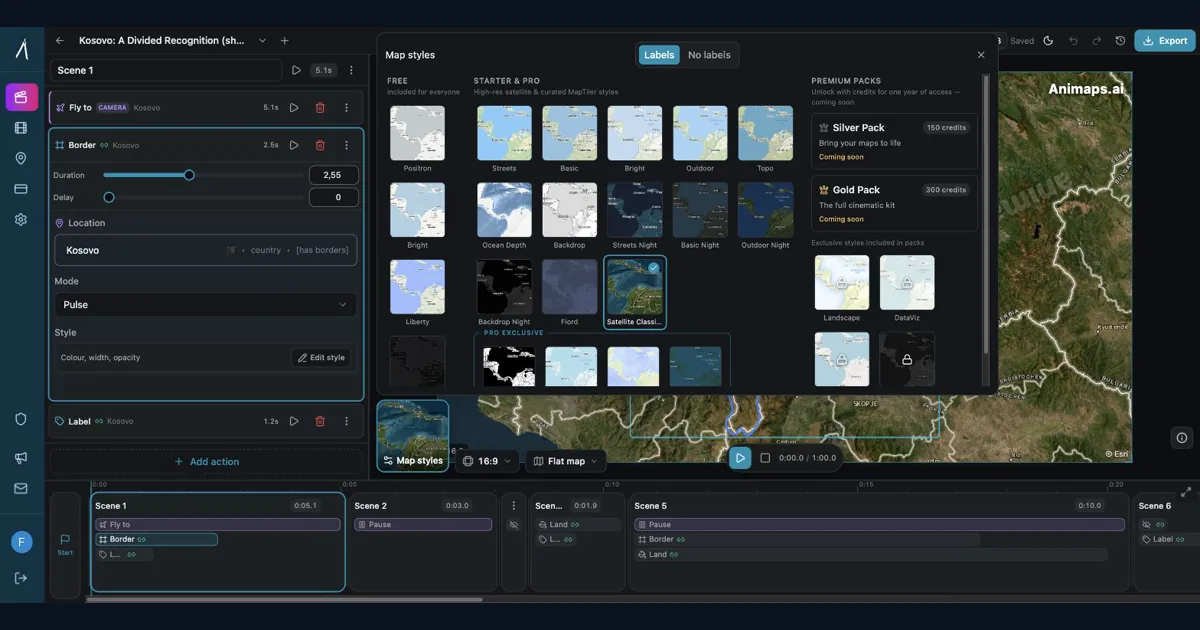
- Pick the look. Choose a map style and a flat map or a 3D globe. The style sets the mood more than anything else.
- Export. Download an MP4 at 720p or 1080p, or 1440p, which is included on Pro. Use a GIF for a loop of up to 6 seconds.
Then drop the file on your timeline like any other clip.
Eight Map Motion Graphics You Can Make Today
Each prompt gives you a full first draft. Paste one in, watch it, then make it yours by hand.
- Documentary opener: "Start on the globe, spin it slowly to the east, then fly to the Himalayas and tilt the camera."
- News locator: "Fly to Ukraine, pulse its border in red, then add a label on Kyiv."
- History explainer: "Show the borders of the Roman Empire changing over the years."
- Travel route: "Draw a road trip from Lisbon to Madrid to Barcelona, with a car on the line."
- Flight path: "Draw a flight from London to New York with a plane on the line, then zoom in on New York."
- Country comparison: "Highlight Brazil, Argentina and Chile one after another, each filled with its flag."
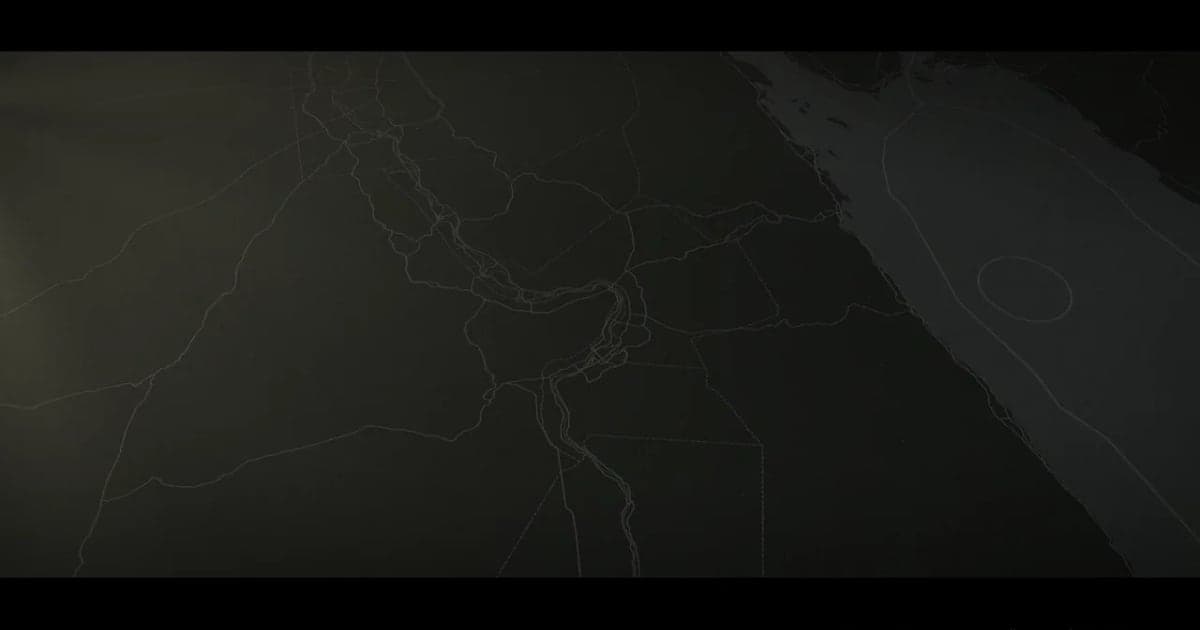
- River story: "Fly to Cairo, then follow the Nile north to the sea, with labels on the big cities."
- City reveal: "Fly to Paris, orbit the city slowly, then add a magnifier on the Eiffel Tower."
Make It Look Designed, Not Default
A map shot looks "made by a designer" when it follows a few simple rules. None of them needs After Effects.
- One idea per shot. Fly, then highlight, then label. Not all three at once. Viewers need a beat to read each change.
- Hold after every big move. Add a short pause after the camera lands. One or two seconds is enough. It feels slow in the editor and right on screen.
- One accent color. Keep the map calm and give the place that matters one strong color. Red for news, gold for history, your brand color for a channel.
- Pick the style for the story. A dark map for drama, a light map for clean explainers, an old atlas look for history. Four styles and the 3D globe are free on every account. Paid plans unlock the rest.
- Few words on the map. Put one or two labels on the map. Put long titles in your editor, where you control the font.
- Use the globe for distance. A 3D globe shows how far apart two places are. A flat map is better for close-up detail and many labels.
The 3D globe animation guide has more on pacing globe shots.
Getting It Into Your Edit
Animaps exports a standard MP4 video. Premiere Pro, DaVinci Resolve, Final Cut Pro and CapCut all open it like any other clip.
Swipe sideways to see the whole table.
| What you need | What to pick |
|---|---|
| YouTube video or documentary | 16:9, 1080p (1440p on Pro) |
| Shorts, Reels or TikTok | 9:16, 1080p |
| Instagram or LinkedIn feed | 1:1, 1080p |
| Smooth fast camera moves | 60 FPS (costs more credits than 30 FPS) |
| A short loop for a slide | GIF, up to 6 seconds |
| A long map story | Several short clips, joined in your editor |
Two tips for the edit:
- Cut on the move. Start the map clip just as the camera begins to fly. The motion carries the viewer from your last shot into the map.
- Keep clips short. Five to fifteen seconds per map shot is enough. Make one clip per idea, so a change later means one new export, not a full redo.
What It Costs
Swipe sideways to see the whole table.
| What | Cost |
|---|---|
| Editing by hand, preview, replay | Free and unlimited |
| AI prompt to create a shot | 2 credits |
| AI prompt to change a shot | 2 credits, on Starter and Pro |
| The AI delivers nothing | Your 2 credits come back automatically |
| Export | From 2 credits (up to 20 seconds at 30 FPS) |
| Free plan | 12 credits every month, no credit card |
Editing and preview by hand are free and unlimited. Credits go to AI prompts and exports. The Free plan allows up to 4 AI prompts and 6 exports a month. Free exports run up to 30 seconds, at 1080p, with a small watermark. Paid plans start at $9.90 per month for Starter and $19.90 per month for Pro, with no watermark. Full details are on the pricing page.
Where Animaps Stops
Be clear about the limits before you plan a project:
- No transparent background. Animaps exports a full-frame video, not an overlay with alpha. Use the map as a full-screen shot, then cut back to your footage.
- No 4K. Exports go up to 1440p.
- Map shots, not custom art. It draws maps, borders, routes, labels, icons and 3D models. A hand-drawn character or a custom illustration still belongs in your design tool.
- Length per clip. Up to 30 seconds on Free, 45 on Starter and 60 on Pro. For a longer story, join several clips.
For most map sequences in a YouTube video, a documentary or a news piece, none of these get in the way.
FAQ
Can I make map motion graphics for free? Yes. The Animaps Free plan is free forever, with no credit card. You get 12 credits every month. Editing and preview by hand are free and unlimited, and exports start at 2 credits. Free exports are 1080p with a small watermark.
Do I need After Effects to make map motion graphics? No. Animaps runs in your browser. You describe the shot or build it step by step, and the map engine draws it. You can still finish the clip in After Effects or any editor.
Can I export a map animation with a transparent background? Not today. Animaps exports a full-frame MP4 or a GIF. Most editors use the map as a full-screen shot between other clips.
Which video editors can I use? Any editor that opens MP4: Premiere Pro, DaVinci Resolve, Final Cut Pro, CapCut and others.
Can I use the clips in a monetized video or for a client? Yes. Animaps says exported videos can be used in commercial projects, including monetized YouTube channels and client work. Free exports carry a small watermark.
Is it 3D? It can be. Switch any animation to a 3D globe, tilt the camera, orbit a place or spin the whole Earth. The globe is included on every plan, the Free plan too.
Sources checked on 2026-10-18
- Animaps pricing: Free plan credits, AI prompt cost, prompt and export limits on Free, export cost, longest animation per plan, watermark, paid plan prices.
- Animaps features: animation types, flat map and globe views, export formats, resolutions, frame rates and shapes.
- Animaps map animation maker: commercial use of exported videos, the 3D globe on every plan.
Related Articles:
Make Your First Map Motion Graphic Now
You do not need After Effects, a plugin or a motion designer. You need one idea for a map shot. Open Animaps, type it, and watch the camera fly in seconds. Change every step by hand as often as you want, that part is always free. Then export your first clip with the 12 credits you get every month. Free forever, no credit card.
Keywords: map motion graphics, map motion graphics free, map animation motion graphics, motion map maker, motion map generator, cinematic map animation, documentary map animation
Tags
Related reading
Best AI Map Animation Tools Compared (2026)
Most AI map tools work the same way: type a prompt, render, hope it's good. Animaps is the only tool with a full interactive preview and step editor — so you see and edit every frame before you spend credits on a render. This guide compares the 5 leading map animation tools to help you choose.
Map Video Maker: How to Make a Map Video Online
A map video maker turns a map into a video file you can post or edit. Here is how to make one in Animaps from a single sentence, which shape and size to pick for YouTube, Shorts or a feed, how long it should run, and what each export costs.
How an AI Map Animation Generator Works, From Prompt to Video
Type one sentence and the Animaps AI builds a map animation as a list of steps: camera moves, borders, country fills, routes and labels, on a flat map or a 3D globe. Here is how it works, six prompts you can copy, what it costs, and how to get a good result on the first try.
Animaps vs After Effects: Which Tool Should You Choose for Map Animations?
You're choosing between Animaps and After Effects for map animations. Both create professional results, but they're designed for completely different users. Animaps takes 60 seconds to 10 minutes per animation with zero learning curve. After Effects takes 45-90 minutes per animation after a 150-hour learning investment. This comparison examines time, costs, features, and use cases to help you decide.
Browse every article in the Animaps blog.