How to Start a Faceless Geography or History YouTube Channel With Map Animations
Plan a faceless geography or history YouTube channel around map animations: topic, episode format, script to scenes, one map per scene, voice and Shorts.
Animaps Team
Content Creator
A faceless geography or history channel needs one thing on screen for most of each video: a map that moves. You can make those maps in a browser with the map animation maker, then add your voice in any video editor.
TL;DR
Short version: A faceless channel is a YouTube channel where the host never appears. Geography and history work well for it, because the map is the picture. The plan: pick a narrow topic, pick a fixed episode format, write the script first, cut it into scenes, make one map animation per scene, record the voice, and edit. With Animaps each scene is a typed sentence or a short list of steps, exported as an MP4 in 16:9 for the main video and 9:16 for Shorts. Plan 10 to 20 map scenes for a 10 minute episode.
Quick links:
- YouTube workflow: Animated maps for YouTube guide
- History scenes: History map animation
- Prompts: AI map prompts guide
Why Maps Fit a Faceless Channel
A faceless video still needs something to watch. Stock footage gets repetitive, and it rarely shows the exact place you talk about. A map always does. It answers the first question every viewer has ("where is this?"), and it can show change: a border moving, a route crossing an ocean, a region lighting up.
Maps also make a channel look consistent. If every episode uses the same map theme, the same label design and the same colors, viewers recognize your videos in the feed before they read the title.
Step 1: Pick a Narrow Topic
Broad channels ("geography facts") compete with thousands of others. Narrow ones grow a loyal audience faster. Some angles that work with maps:
- Why borders look the way they do (enclaves, straight lines, odd corners).
- One empire or kingdom per episode, from its start to its end.
- Trade routes and straits: who ships what, through where.
- Islands and remote places, one per episode.
- Wars explained in neutral terms, front by front.
- Cities: why they were built where they are.
Step 2: Pick a Fixed Episode Format
A fixed format saves time on every episode. A simple one:
- Hook (0 to 15 seconds): a globe spin that lands on the place, with one question on screen.
- Context (1 to 2 minutes): where the place is, its neighbors, its size.
- The story (5 to 7 minutes): three or four chapters, each with its own map scenes.
- Today (1 minute): the map as it is now.
- End (20 seconds): a wide view and the next episode's question.
Titles that ask a question tend to fit this format: "Why Does Chile Look Like This?", "Why Is Egypt's Border a Straight Line?", "How Did a Small Kingdom Become an Empire?".
Step 3: Write the Script, Then Cut It Into Scenes
Write the full script before you make a single map. Then mark each place where the picture should change. Each mark is a scene. A scene is usually 5 to 30 seconds long and shows one idea.
Next to each scene, write the map action in a few words: "fly to Chile", "trace the border of Bolivia", "route from Lisbon to Goa by sea", "border timelapse of Prussia". That list is your shot list.
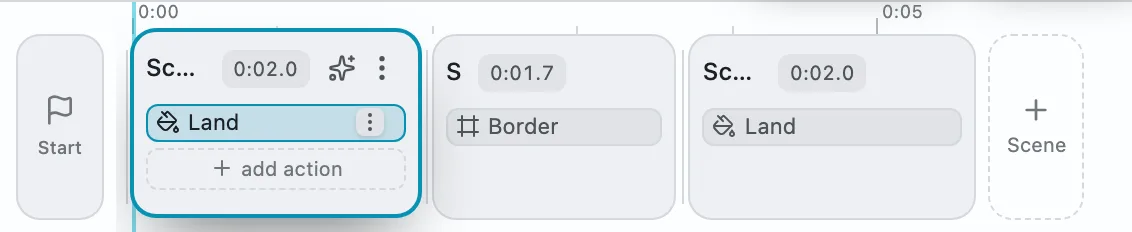
Step 4: Make One Map Animation per Scene
For each line of the shot list, open Animaps and type the scene as a sentence. The AI builds the steps: camera moves, borders, fills, routes and labels. You can then change any step by hand.
Some scenes from a "Why Does Chile Look Like This?" episode:
Fly to the Atacama Desert with a slight tilt, fill Chile in red and pulse the borders of Peru and Bolivia.
Show the Andes from the side with a low tilt, then pan slowly from north to south along Chile.
Draw a sea route from Valparaiso to Cape Horn, then label Cape Horn and hold 3 seconds.
Each scene exports as its own MP4. Keep the file name equal to the scene number in your script, so the edit goes fast.
Step 5: Keep One Look Across Episodes
Pick one map theme and keep it. The Map themes panel sets the map style, label design and colors in one click: Doc Archive and Vintage Parchment suit history, Editorial Slate and Minimal Flat suit modern geography, War Room suits conflict explainers. Use one accent color for "the subject" in every episode.
For history episodes, the Historical step plays a border timelapse from one year to another. Animaps has 25,400+ historical border snapshots, so you do not draw old borders by hand. See the border timelapse tutorial.
A history scene to start from:
Step 6: Record the Voice and Edit
Record your voice with a microphone or a voice tool you trust, then put the voice track and the map scenes on the timeline of your video editor. Cut each scene so the reveal lands on the word that names it.
Step 7: Cut Shorts From Each Episode
Every episode holds two or three moments that work alone: the hook, a surprising border, a long route. Export those scenes again in 9:16. Zoom a little closer than in 16:9, because the frame is narrow. Shorts bring new viewers to the long episode.
How Much Map Do You Need?
A 10 minute episode usually needs 10 to 20 map scenes, plus a few seconds of other footage. If one scene takes 5 to 10 minutes to type, preview and export, the map part of an episode is a few hours of work. That is the difference with a hand-made After Effects workflow, where one scene can take that long alone. Read what an animated map is for the scene types you can use.
Mistakes to Avoid
- Too many places in one scene. One place, one move.
- Labels that are too long. Three words is a good limit.
- A new map style every episode. Viewers lose the brand.
- Claims you cannot check. Faceless history channels live on trust; cite sources in the description.
- Taking sides in a conflict video when you mean to explain. Neutral colors and dated labels help.
FAQ
Can I run a faceless YouTube channel with only map animations? Yes. Many geography and history channels use maps for most of each video, with a voice over them. Add some photos or footage where a map cannot show the idea.
How many map animations does one video need? A 10 minute episode usually needs 10 to 20 scenes of 5 to 30 seconds each.
Do I need After Effects? No. A browser map animation tool covers borders, routes, labels and camera moves, and exports MP4 files you edit like any other clip.
Can I make Shorts from the same maps? Yes. Export the scene again in 9:16. Shorts, Reels and TikTok all use that shape.
Does Animaps add a voiceover or music? No. Record the voice and add music in your video editor, then place the map scenes on the timeline.
For the explainer look, read how to make Vox-style map animations. For the full YouTube workflow, read how to create map animations for YouTube.
Tags
Related reading
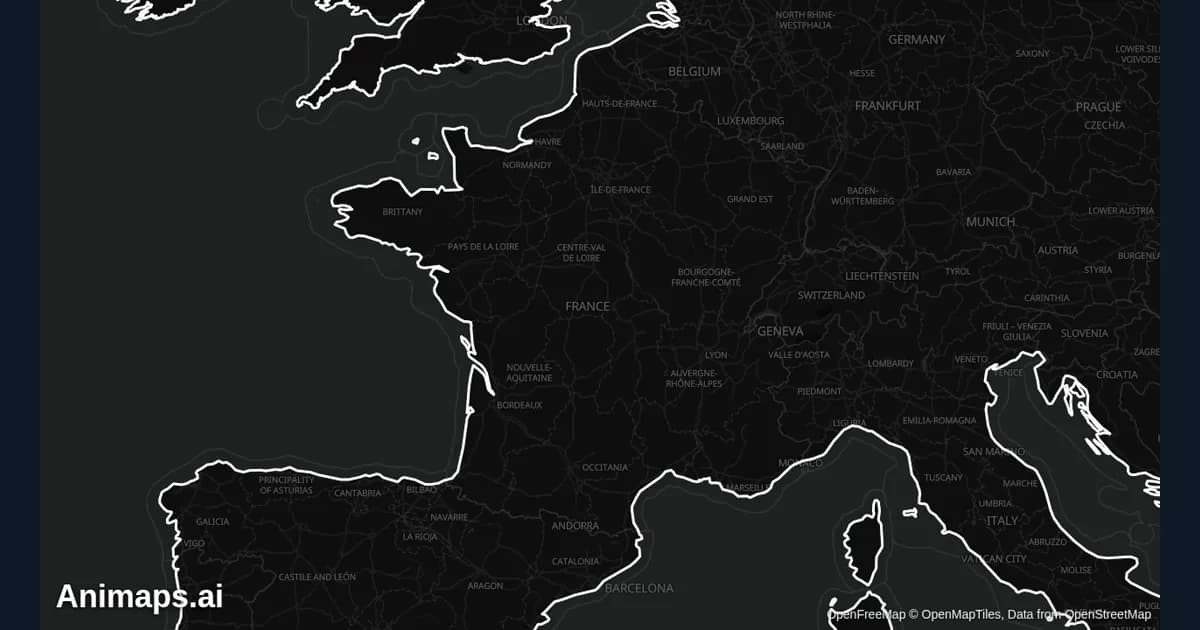
How to Create Map Animations for YouTube Videos: The Complete 2026 Guide
Map animations have become the secret weapon of successful YouTube creators. From travel vloggers showcasing epic journeys to educational channels explaining world events, animated maps transform dry geographic information into captivating visual stories that keep viewers engaged. Vox's channel grew from 50,000-150,000 daily views to 1-3 million daily views after they started incorporating more map animations into their content.
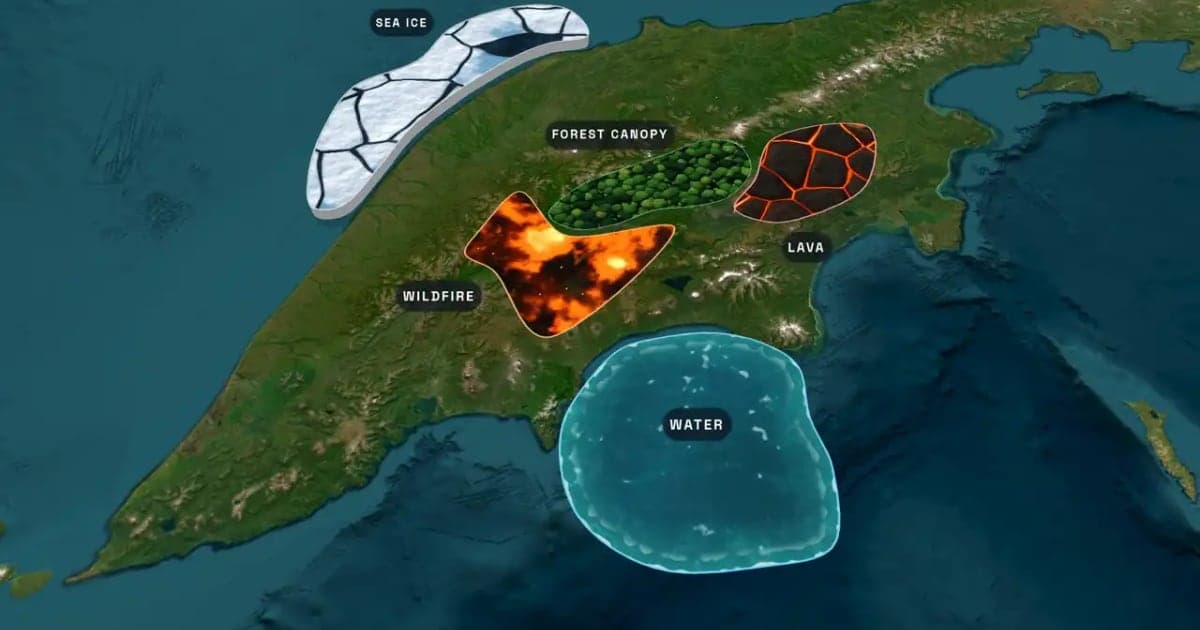
What Is an Animated Map? Types, Uses and How to Make One
An animated map is a map that changes over time in a video: the camera moves, places light up, routes draw and borders shift. Here are the six common types, who uses them, the two ways they are made, and how to make one in Animaps from a single sentence.
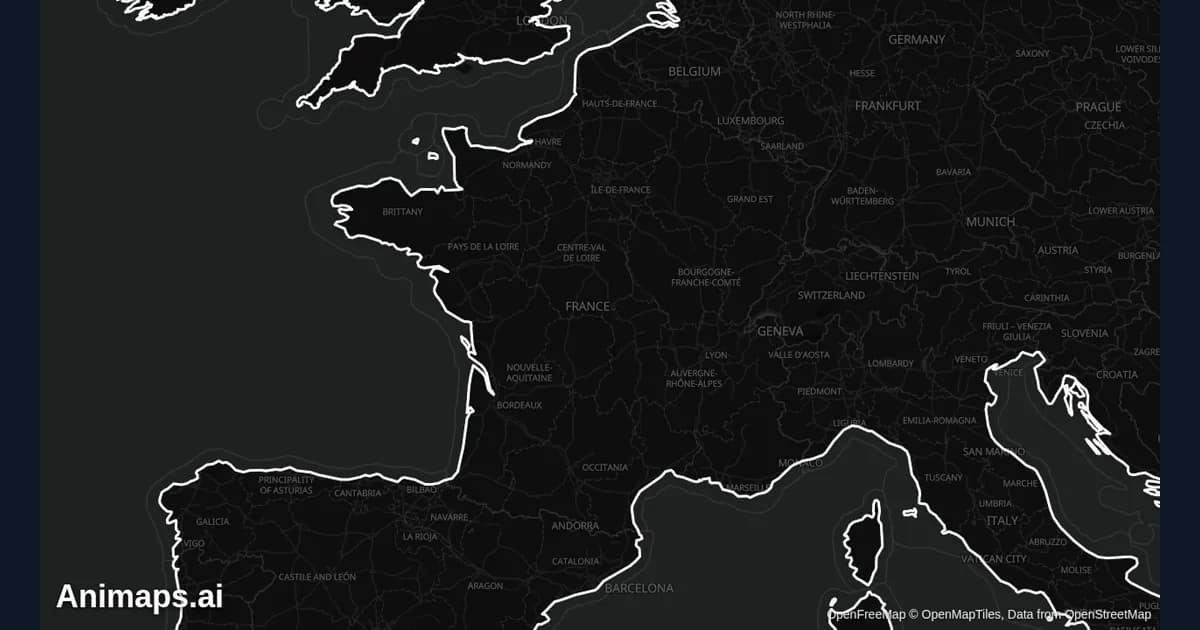
Best Practices for Educational Map Animations
Educational map animations have revolutionized how we teach geography, history, and social studies. When done right, they can transform abstract concepts into visual stories that students remember long after the lesson ends.
Browse every article in the Animaps blog.