Cinematic Map Camera Moves: Orbit, Tilt, Sweep and Easing Explained
Which map camera move to use when: fly to, tilt, rotate, orbit, arc, drone, globe spin and fly along, plus how each easing curve changes the feel of a move.
Animaps Team
Content Creator
The camera is what makes a map feel filmed instead of shown. This guide explains the main map camera moves (fly to, orbit, tilt, rotate, arc, drone, globe spin and fly along), when each one helps, and how easing changes the feel of a move.
TL;DR
Short version: Use Fly to to go from place to place. Use Tilt for depth, Orbit to circle one landmark, Arc for a long jump between continents, Drone for a low pass over land, Globe Spin to open on the planet, and Fly along to ride a route. Give each move 2 to 6 seconds and do one big move at a time. Pick the easing: Ease In Out for most moves, Cruise for long flights, Linear for steady rides along a route.
Quick links:
- The main move: Fly to guide
- On the globe: 3D globe animation guide
- Every step: Manual map editor guide
- Zooms: Map zoom animation
This guide covers:
- The camera moves, one by one, and when to use each
- Easing: what each curve does
- How to chain moves so viewers do not get lost
- Prompts you can paste
The Three Numbers Behind Every Move
Every camera position on a map comes down to a few numbers.
- Zoom: how close the camera is. Low zoom shows a continent, high zoom shows a street.
- Tilt: the angle of the camera, from 0 degrees (straight down) to 85 degrees (almost at the horizon).
- Bearing: which way the camera faces. 0 is north up.
A camera move changes one or more of these over time. A good move changes them for a reason: to show where we are, to show depth, or to follow something.
The Camera Moves, One by One
Fly to
Fly to moves the camera to a new place, rising and coming back down the way a plane would. It is the move almost every map video opens with. Type a country, a city or exact coordinates. Leave Zoom on Auto to frame the place, or set your own. Add a Tilt and a Bearing for an angled arrival.
Use it when the story changes place. Duration: 2 to 4 seconds.
Pan to
Pan to slides the camera to a nearby place without changing the zoom. Use it between two cities in the same region, where a full Fly to would feel too big.
Tilt
Tilt changes the camera angle. Around 45 to 60 degrees looks filmed, like the view from a plane window. 0 to 20 degrees is the flat, top-down look of a news map.
Use it when the shape of the land matters, or to add depth before a close-up. Labels and borders read best from above, so tilt when the ground is the point.
Rotate
Rotate turns the compass heading. A slow rotate adds life to a still view. It also lines up the map with a route, so a route that runs north-east can run up the screen.
Orbit
Orbit circles the camera around one point. The place stays in the middle while the world turns around it. You set how far it turns in degrees: 360 is one full circle, 120 to 180 is usually enough.
Use it when one landmark is the whole scene: a volcano, an island, a harbour, a city centre with 3D buildings. Give it 4 to 6 seconds, at a tilt around 60 degrees. Do not combine it with another camera move in the same moment.
Arc
Arc lifts the camera off the ground, crosses a long distance and lands somewhere else. You set how high the arc goes, and the tilt and bearing at landing.
Use it for a jump the viewer should feel: another continent, another side of the world. For two neighbouring cities, an Arc looks like a mistake. Use Pan to or Fly to there. Duration: 3 to 4 seconds.
Drone
Drone is a low, slow push across the ground, as if a drone flew it. It works at close range: a valley, a coast, a city. At country zoom there is nothing close enough to read the motion against.
Pair it with 3D terrain for mountains. Duration: 4 to 6 seconds.
Globe Spin
Globe Spin turns the whole planet east or west, then rests on the place you pick.
Use it as an opening, or as a transition between two parts of the world. One spin per video is usually enough.
Fly along
Fly along moves the camera along a path: a route you drew, a river, or a line. It has three modes:
- Follow behind: the camera rides behind the head of the route, like a chase camera.
- Overview: the camera keeps the whole line in frame as it draws.
- Drone around: the camera circles along the path, for a river or a valley.
The fastest way to add one is the Follow this route with the camera button under a Route step. Give it the same duration as the route.
Pause and Cinematic pause
Pause holds the view, so viewers can read a label. Turn on Cinematic pause and the camera makes small slow moves during the hold instead of freezing. Use it for 2 to 4 seconds after an arrival.
Easing: How a Move Starts and Stops
Easing controls the speed of a move over its length. The same Fly to feels calm or rushed depending on the curve. The Easing menu on each camera step offers:
- Default: the step's own curve. A safe choice.
- Linear: the same speed from start to end. Good for riding along a route, where speed changes look odd.
- Ease In: starts slow, ends fast. Good for leaving a place.
- Ease Out: starts fast, ends slow. Good for landing on a place.
- Ease In Out (Auto Ease): slow start, fast middle, slow end. The natural choice for most moves.
- Cruise (slow-fast-slow): a long fast middle, like a plane at cruise speed. Good for long flights between places.
- Fly-By (fast-slow-fast): slows down in the middle, as if passing something worth a look.
If a move feels jumpy, the easing is usually the fix, not the duration.
How to Chain Moves Without Losing the Viewer
- One big move at a time. A tilt, an orbit and a fast zoom at once leave viewers lost.
- Hold after you arrive. One to three seconds on the place before the next move.
- Go wide before a long jump. Zoom out, move, zoom back in. Viewers see the distance.
- Change angle on the last move only. Many angle changes in a row are hard to follow.
- Reset after an orbit or a rotate. Bring the bearing back to north so the next map reads normally.
Prompts You Can Paste
Fly to Rio de Janeiro with a 55 degree tilt, then arc to Cape Town and land with a 45 degree tilt.
Fly to the Grand Canyon, turn on 3D terrain, and make a drone pass along the canyon for 6 seconds.
Draw a flight route from London to Singapore and follow it with the camera, with a cruise easing.
The AI map prompts guide has more prompt patterns, and how to make a 3D map animation goes deeper on tilt, terrain and the globe.
FAQ
What is the best camera move for a map video? Fly to. It carries the viewer from one place to the next and frames the place for you. Add other moves only when they show something Fly to cannot.
How do I make a map camera orbit a point? Add an Orbit step, set the place, the zoom and the degrees to turn. A tilt around 60 degrees and 4 to 6 seconds work well.
What does easing do in a map animation? It sets how the speed changes during a move. Ease In Out starts and ends slowly. Linear keeps one speed.
Can the camera follow a route? Yes. Use Fly along, or the Follow this route with the camera button under a Route step.
Do these moves work in vertical 9:16 videos? Yes. All camera moves work in every shape. In 9:16, zoom a little closer, because the frame is narrow.
Related Articles:
Keywords: map animation camera moves, map animation camera orbit, map animation easing, cinematic map camera, map camera tilt animation, drone map animation
Tags
Related reading
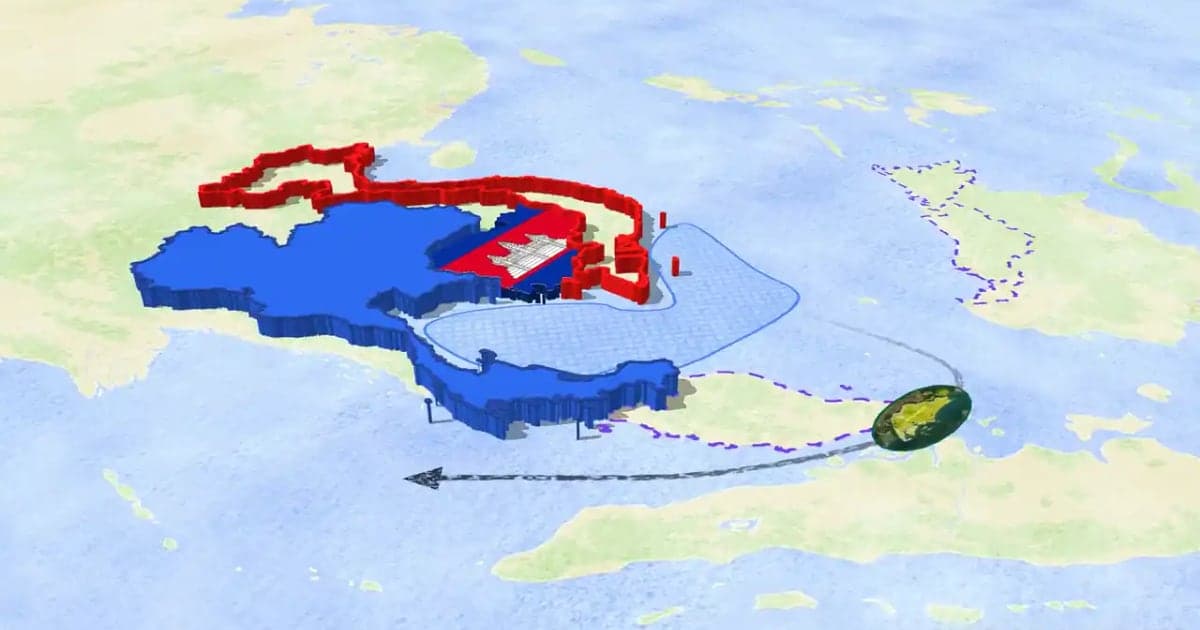
How to Make a 3D Map Animation in Your Browser
A 3D map animation gives the map depth: a turning globe, a tilted camera, raised mountains, a city skyline or a plane model on its route. Animaps does all five in a browser. The globe is on every plan, Free included; 3D terrain and 3D buildings are on Pro.
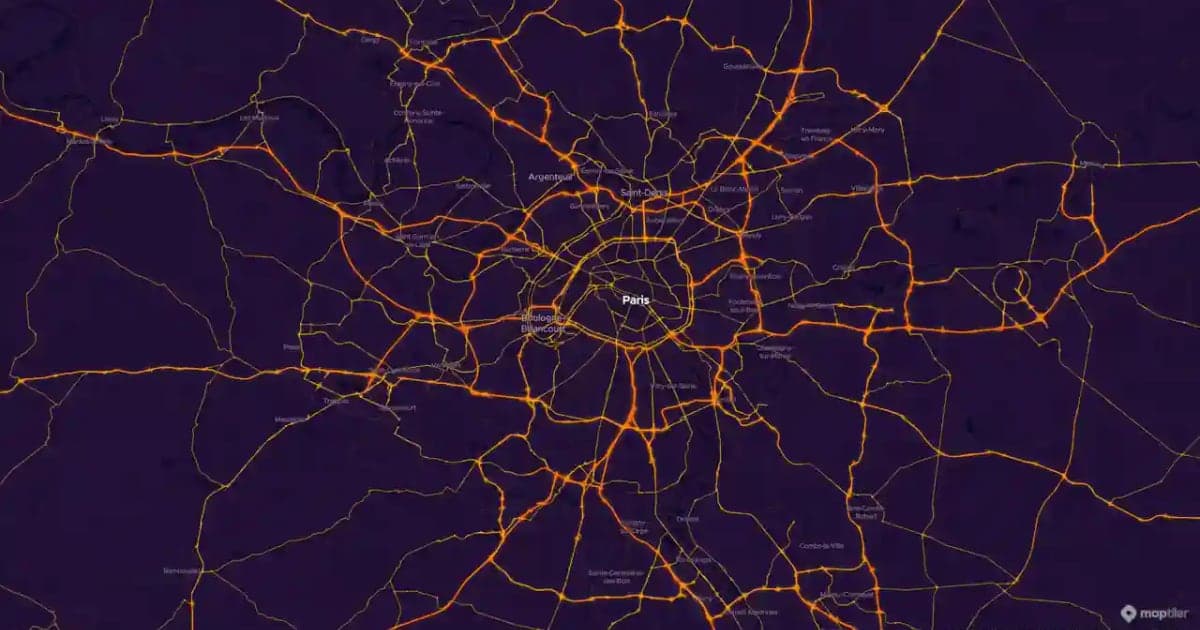
Map Motion Graphics: How to Make Them Without After Effects
Map motion graphics are the moving maps of documentaries, explainers and news: a camera that flies, a border that draws itself, a route that crawls across the map. Here is how to make them without After Effects, eight prompts you can copy, and how to drop the clips into your edit.
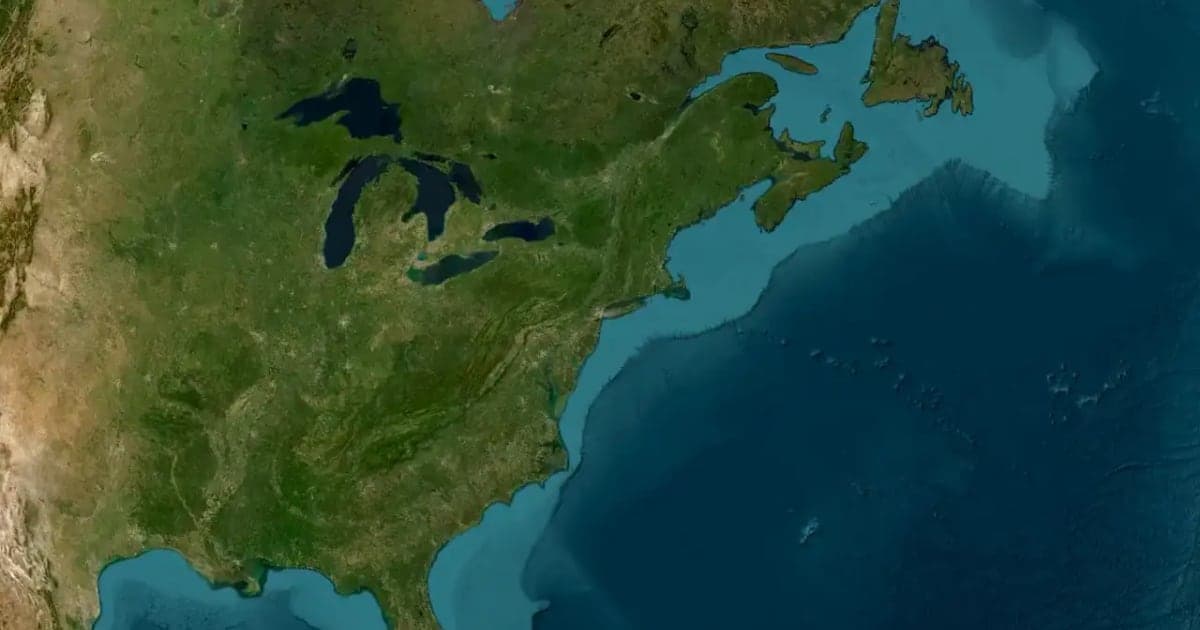
Animaps vs Google Earth Studio: Realistic Flyovers or Explainer Maps?
Google Earth Studio is free and has the most realistic 3D imagery among the tools we compare, but you request access, it runs only in desktop Chrome, local renders are image sequences, and Google offers no commercial licence for the imagery. Animaps has open sign-up and exports a finished MP4 with borders, fills, labels and routes already in it. Pick Earth Studio for realistic flyovers, Animaps when the map has to explain something.
Browse every article in the Animaps blog.