Map Zoom Animation: How to Zoom In on Any Place
How to make a map zoom animation: the camera steps that zoom, a step-by-step method, prompts to copy and tips that keep the move easy to follow.
Animaps Team
Content Creator
A map zoom animation takes the viewer from a wide view down to one place, so they always know where the story is. You can make one with the map animation maker in your browser, in a few minutes.
TL;DR
Short version: A map zoom animation is a camera move. It starts wide (the world, a continent, a country) and ends close on one place (a city, a building, a coast). In Animaps you type the move in a sentence, or you build it with camera steps: Fly to, Zoom in / out, Pan to and Globe Spin. Then you add a pin, a label or a filled country at the end of the zoom, and you export an MP4 in 16:9, 9:16 or 1:1. Editing and preview are always free and unlimited.
Quick links:
- See what it does: Map animation maker
- The main camera step: How to fly the camera to any location
- First time? How to create a map animation
- On the globe: 3D globe animation guide
This guide covers:
- What a map zoom animation is, and when to use one
- The four camera steps that zoom
- How to make a zoom, step by step
- Prompts you can copy
- Tips that keep a zoom easy to follow
What Is a Map Zoom Animation?
A map zoom animation moves the camera closer to the ground, or further away. The classic version opens on the whole Earth and dives down to one city. News channels, travel vlogs and history videos all use it, because it answers the first question a viewer has: where is this?
A zoom does two jobs at once. It shows the place, and it shows where the place sits in the world. A still map of a small town tells you nothing if you do not know the country. A zoom from the country down to the town tells you both.
When to Use a Zoom
- At the start of a video. Open on the globe or the country, then zoom to the place you will talk about.
- When the story changes place. Zoom out, move, zoom back in. The viewer sees the jump.
- To show scale. A zoom from a city to a single street shows how small or large something is.
- To end on a detail. Finish close on the place, with a pin and a name.
The Four Camera Steps That Zoom
Animaps has several camera steps. Four of them change the zoom, or work well with it.
Fly to
Fly to moves the camera to a place, arcing out and back down the way a plane would. It is the step most zoom animations use.
- Type the destination: a country, a city, or exact coordinates.
- Leave Zoom on Auto to frame the place for you, or set your own value.
- Set Tilt and Bearing for an angled arrival, or leave them blank to keep the current angle.
- Pick an easing curve, and set the duration. The duration is the whole length of the move.
The Fly to guide has every setting, step by step.
Zoom in / out
Zoom in / out zooms in, then back out, on the spot the camera is already looking at. It does not move the camera to a new place. Use it after a Fly to, when you want a closer look at the same place and then the wide view again.
Pan to
Pan to slides the camera across to a nearby place without changing the zoom. Pair it with a zoom: zoom in on one city, then pan to the next one at the same height.
Globe Spin
Globe Spin works on the globe view. It turns the Earth east or west, up to five turns, zooming as it goes, and lands on the place you chose. It is the classic "from space to the city" opening.
How to Make a Map Zoom Animation in Animaps
- Pick the map. Choose flat or globe. The globe suits zooms that start from space. The flat map suits zooms inside one country. Then pick a map style: light, dark, satellite, night or a themed style.
- Set the starting view. Open on a wide view: the world, a continent or the country. A first Fly to with a low zoom gives you that view.
- Add a Fly to. Type the place you want to end on. Leave Zoom on Auto, or set it closer for a tighter shot.
- Add tilt if you want depth. Tilt goes from 0° (straight down) to 85°. A small tilt at the end of the zoom makes the arrival look less flat.
- Show what you zoomed to. Add a Label with the name, an icon such as a pin, or fill the country or region with the Land step.
- Hold the view. Add a Pause, so viewers have time to read the label.
- Preview and adjust. Play it as often as you like. Change the duration or the easing until the move feels right.
- Export. Pick 16:9 for YouTube, 9:16 for Shorts, Reels and TikTok, or 1:1 for feeds. Download the MP4.
You can also skip the steps and type the whole thing as one sentence. The AI turns it into steps, and you edit any of them before you export. The AI map prompts guide shows how to write prompts that work.
Prompts You Can Copy
- "Start on the globe, spin to Japan, then fly to Tokyo and add a label."
- "Show Europe, then fly to Rome with a 45° tilt and drop a pin on the city."
- "Start on the whole of Brazil, then zoom to Rio de Janeiro and pause for 2 seconds."
- "Fly to Iceland, fill it in blue, then pan to Reykjavik and add a label."
- "Show the world, then fly to Kenya, pulse its border and label Nairobi."
Ideas for Zoom Animations
- News: zoom from the country to the city where the event happened. See the news map workflow guide.
- Travel: zoom to each stop of a trip, then draw the route between them. See travel map animation.
- History: zoom to a battle site or an old capital, then show the borders of the time. See history map animation.
- Geography lessons: zoom from the continent to the country, then fill each region. See the country highlight guide.
- YouTube intros: a spinning globe that lands on your topic. See animated maps for YouTube.
Tips for a Clear Zoom
- One zoom, one place. Do not zoom to two places in one move. Zoom out, then zoom back in.
- Give the move time. A long jump, like from space to a street, needs more seconds than a jump from a country to its capital.
- Name the place at the end. A label or a pin tells viewers they have arrived.
- Shade the rest. The Shade step darkens everything outside a region, so the eye goes to the place you zoomed to.
- Keep the angle simple. Change tilt or bearing on the last move only. Too many angle changes are hard to follow.
- Match the zoom to the shot size. For a vertical 9:16 video, zoom a little closer, because the frame is narrow.
FAQ
How do I make a map zoom animation? Pick a starting view, then add a Fly to step with the place you want. Add a label or a pin at the end, preview it, and export an MP4. In Animaps you can also describe the zoom in one sentence and let the AI build the steps.
Can I zoom from space to a city? Yes. Use the globe view. Globe Spin turns the Earth and lands on the place you chose, and a Fly to can then take the camera closer.
Can I zoom to exact coordinates? Yes. The Fly to step takes a country, a city or exact coordinates.
Can I make a vertical zoom video for Shorts or TikTok? Yes. Export in 9:16. Shorts, Reels and TikTok all use that shape.
Do I need After Effects or Google Earth Studio? No. Animaps runs in the browser and exports the video itself, with no plugins or keyframes. Our Google Earth Studio comparison covers the differences.
What is the difference between Fly to and Zoom in / out? Fly to moves the camera to a new place. Zoom in / out stays on the same spot and zooms in, then back out.
For depth, read how to make a 3D map animation. For shapes and sizes, read the map video maker guide.
Keywords: map zoom animation, zoom map animation, map zoom video, zoom in on map animation, map location animation, globe zoom animation, fly to location map animation
Tags
Related reading
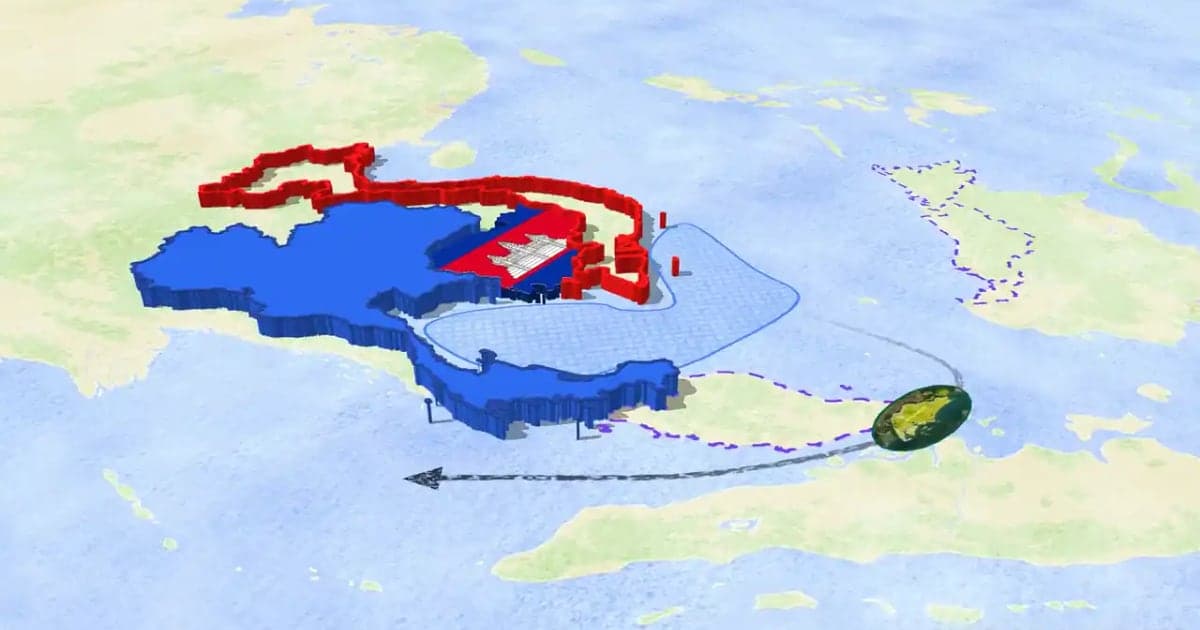
How to Make a 3D Map Animation in Your Browser
A 3D map animation gives the map depth: a turning globe, a tilted camera, raised mountains, a city skyline or a plane model on its route. Animaps does all five in a browser. The globe is on every plan, Free included; 3D terrain and 3D buildings are on Pro.
Map Video Maker: How to Make a Map Video Online
A map video maker turns a map into a video file you can post or edit. Here is how to make one in Animaps from a single sentence, which shape and size to pick for YouTube, Shorts or a feed, how long it should run, and what each export costs.
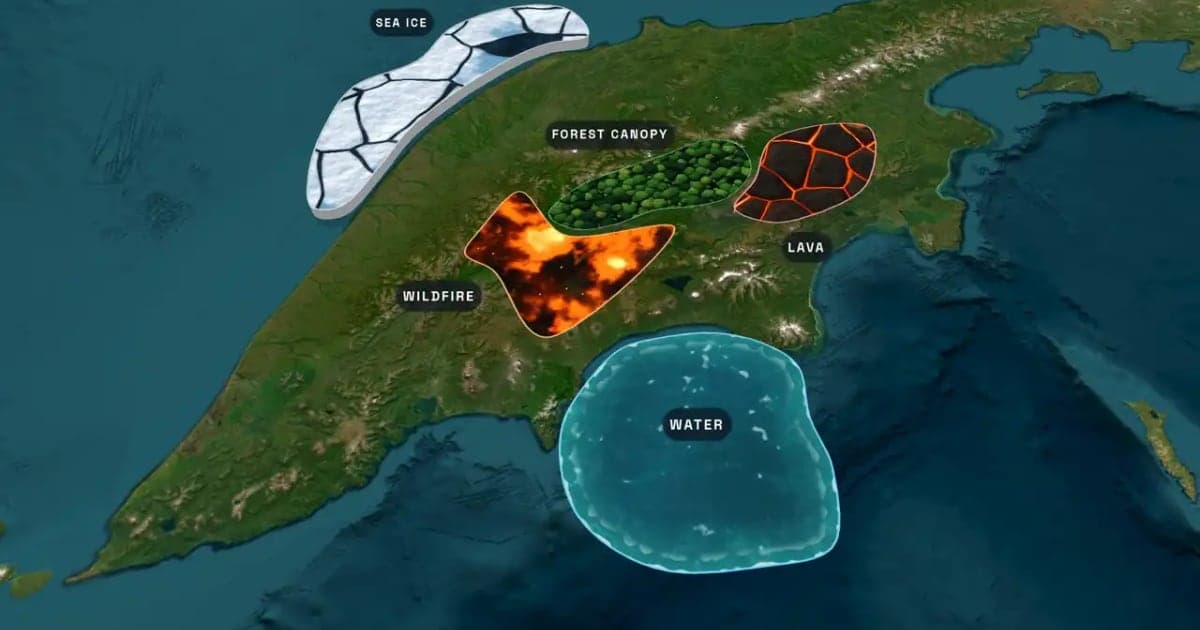
What Is an Animated Map? Types, Uses and How to Make One
An animated map is a map that changes over time in a video: the camera moves, places light up, routes draw and borders shift. Here are the six common types, who uses them, the two ways they are made, and how to make one in Animaps from a single sentence.
Browse every article in the Animaps blog.