Map Animation Export Formats: MP4, GIF, Sizes and Shapes
Which format, shape, resolution and frame rate to pick when you export a map animation: MP4 or GIF, 16:9, 9:16 or 1:1, 720p to 1440p, 30 or 60 FPS.
Animaps Team
Content Creator
Plan details come from animaps.ai/pricing on the "Last updated" date above.
Before you export a map animation, you pick four things: the format (MP4 or GIF), the shape, the resolution and the frame rate. This guide explains each choice in Animaps, and which one fits YouTube, Shorts, TikTok, a slide deck or a website.
TL;DR
Short version: Animaps exports MP4 video and GIF. MP4 comes in 720p, 1080p or 1440p, at 30 or 60 frames per second. 1080p is included on every plan, Free included. 1440p is included on Pro and costs extra credits on the other plans. GIF is for short clips of up to 6 seconds, at 720p and 30 FPS. You can export in three shapes: 16:9, 9:16 and 1:1. There is no 4K export, no transparent background and no green screen export today.
Quick links:
- Shapes and sizes per platform: Map video maker guide
- For YouTube: Animated maps for YouTube
- Plans and watermark: Pricing
The Export Options at a Glance
Swipe sideways to see the whole table.
| Choice | Options |
|---|---|
| Format | MP4 video, GIF |
| Shape | 16:9, 9:16, 1:1 |
| Resolution (MP4) | 720p (draft), 1080p (Full HD), 1440p (2K) |
| Frame rate (MP4) | 30 FPS, 60 FPS |
| GIF | up to 6 seconds, 720p, 30 FPS |
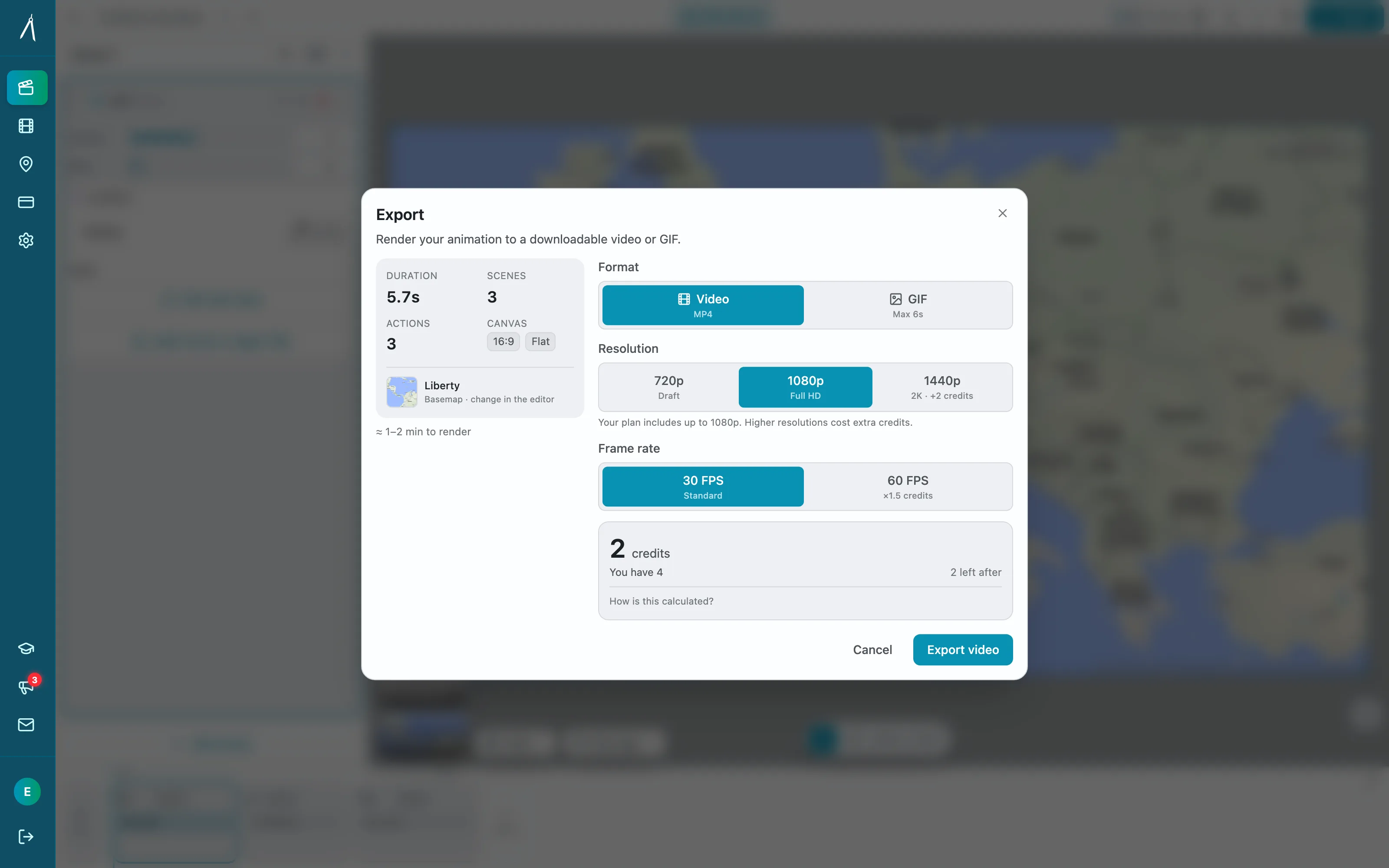
MP4 or GIF?
MP4 is the format for almost everything. YouTube, TikTok, Instagram, LinkedIn, X and every video editor read it. The file is small for its quality, and the video can be as long as your plan allows.
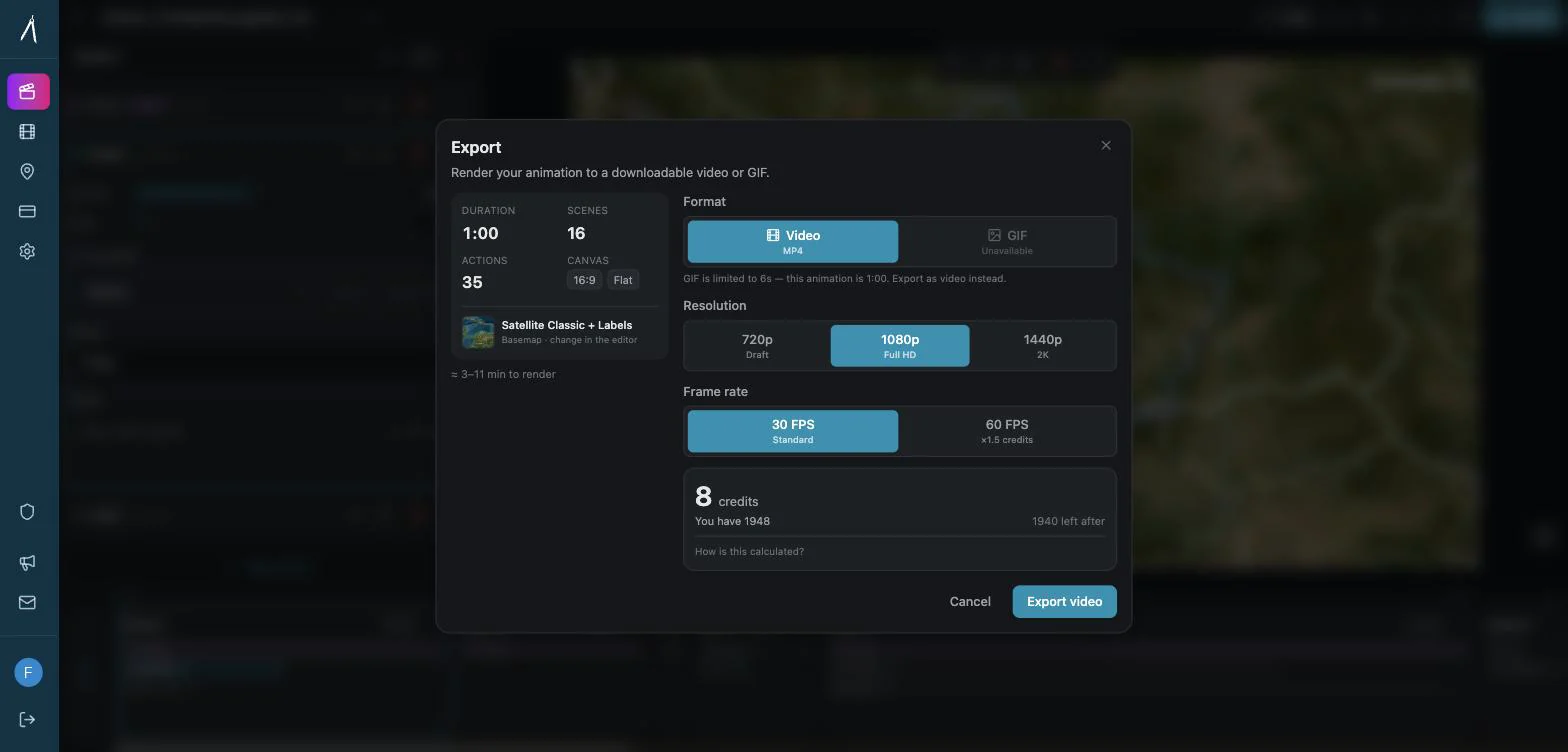
GIF plays by itself, with no play button, in places that do not play video: some email tools, some chat apps, documentation pages and old slide tools. GIF files are large and their colours are limited, so Animaps keeps GIFs short: 6 seconds at most. If your animation is longer, the export dialog switches you back to video.
Which Shape?
- 16:9 (wide): YouTube, TV, presentations, websites, news segments.
- 9:16 (vertical): YouTube Shorts, TikTok, Instagram Reels and Stories.
- 1:1 (square): feed posts on Instagram, Facebook and LinkedIn.
Pick the shape before you finish the animation, not at the end. A vertical frame is narrow, so places on the left and right of a wide map fall out of view. Fly the camera a little closer for 9:16, and check every label in the preview.
Which Resolution?
- 720p (Draft): quick to render. Use it to check timing and framing before the final export.
- 1080p (Full HD): the standard for YouTube, social media and most screens. Included on every plan.
- 1440p (2K): sharper. Useful when you will crop or zoom into the map in your video editor, or for large screens. Included on Pro; on the other plans it costs extra credits.
Animaps does not export 4K. If your main video is 4K, a 1440p map scaled up in your editor usually looks fine, because map lines and labels are simple shapes.
Which Frame Rate?
- 30 FPS: standard playback. Right for most map videos.
- 60 FPS: smoother. It helps on fast camera moves, such as a quick Globe Spin or a fast Fly to, and on videos that will be played back slowly. It costs more credits per export. Your plan sets whether 60 FPS is available; the export dialog tells you.
How Long Can an Export Be?
Each plan has a longest export, shown on the pricing page. The export dialog checks the length before you confirm. If the animation is too long, it tells you, and you can shorten it or export it in two parts.
Most map segments work best between 5 and 30 seconds. A map between two talking shots needs about 10 seconds.
The Watermark and the Map Credit
- Free exports carry a small Animaps watermark. Starter and Pro exports do not.
- Every export, on every plan, keeps a small map data credit, such as "© OpenStreetMap contributors". The data providers require it. Read commercial use and map attribution for the details.
How to Export, Step by Step
- Open your animation in the studio and play it once from the start.
- Click Export.
- Pick the format: Video (MP4) or GIF.
- For video, pick the resolution and the frame rate.
- Read the summary and the credit cost.
- Confirm. The render runs on our servers. You find the file in your animations list when it is ready.
What You Cannot Export Today
To save you a search, here is what the export does not offer.
Settings by Platform
Swipe sideways to see the whole table.
| Where it goes | Format | Shape | Resolution | FPS |
|---|---|---|---|---|
| YouTube video | MP4 | 16:9 | 1080p or 1440p | 30 |
| YouTube Shorts, TikTok, Reels | MP4 | 9:16 | 1080p | 30 |
| Instagram or LinkedIn feed | MP4 | 1:1 | 1080p | 30 |
| Slide deck | MP4 | 16:9 | 1080p | 30 |
| Email or docs page | GIF | 16:9 or 1:1 | 720p | 30 |
| Fast globe intro | MP4 | 16:9 | 1080p | 60 |
Need a short map to test these settings? Open this prompt, then export it twice, at 30 and at 60 FPS, and compare.
FAQ
Does Animaps export 4K? No. The highest resolution is 1440p (2K).
Can I export a GIF? Yes, for animations of up to 6 seconds. GIFs export at 720p and 30 FPS.
Can I export with a transparent background? No. Exports always include the map. There is no alpha channel or green screen export.
Can I export vertical video for TikTok and Shorts? Yes. Pick 9:16.
Is 1080p available on the Free plan? Yes. 1080p is included on every plan.
Should I use 60 FPS? Only for fast camera moves or slow-motion playback. For most map videos, 30 FPS is right and costs fewer credits.
Keywords: map animation export, map video export formats, export map animation mp4, map animation gif, map video resolution, map video aspect ratio
Tags
Related reading
Map Video Maker: How to Make a Map Video Online
A map video maker turns a map into a video file you can post or edit. Here is how to make one in Animaps from a single sentence, which shape and size to pick for YouTube, Shorts or a feed, how long it should run, and what each export costs.
How to Create Map Animations for YouTube Videos: The Complete 2026 Guide
Map animations have become the secret weapon of successful YouTube creators. From travel vloggers showcasing epic journeys to educational channels explaining world events, animated maps transform dry geographic information into captivating visual stories that keep viewers engaged. Vox's channel grew from 50,000-150,000 daily views to 1-3 million daily views after they started incorporating more map animations into their content.
How to Create Professional Map Animations in 60 Seconds (No Experience Required)
Most map animation tools require 30-60 minutes per video. After Effects demands hours of work plus months of learning. Animaps creates professional map animations in 60 seconds using natural language commands. Just type what you want, preview instantly, and export. This guide shows you exactly how the 60-second workflow works with real examples.
Browse every article in the Animaps blog.