How to Animate a Road Trip on a Map (Real Roads, Multi-Stop)
Animate a road trip stop by stop on real roads: type the stops, set the route to Car, put a 3D car on the line and let the camera follow it. Pacing tips and prompts.
Animaps Team
Content Creator
A road trip map animation draws your drive stop by stop, on the real roads, with a car riding the line. You type the stops, Animaps finds the road route between them, and you export the video. No GPS file needed, and no keyframes.
TL;DR
Short version: Add a Route step, type your start and end, add a waypoint for each stop, and set the route mode to Car. Animaps follows real roads between the stops. Pick the Road trip look for a warm line, named stops and a small bounce on arrival. Put a 3D car at the tip of the line, then click Follow this route with the camera. Give each leg 4 to 8 seconds, hold 2 seconds on each stop, and export an MP4.
Quick links:
- Routes, step by step: Route action guide
- Travel routes: Travel route animation guide
- Travel videos: Travel map animation
- A finished trip: Greek island hopping demo
This guide covers:
- What you need before you start
- How to build a multi-stop road trip, step by step
- Pacing per leg
- Mixing road legs with ferry, rail or flight legs
- Prompts you can paste
What You Need Before You Start
Only the list of stops, in order. City names work. So do towns, landmarks and exact coordinates.
Pick the order with care. The route draws in the order you list the stops. If the drive went Denver, Moab, Grand Canyon, Las Vegas, type it in that order.
How to Animate a Road Trip, Step by Step
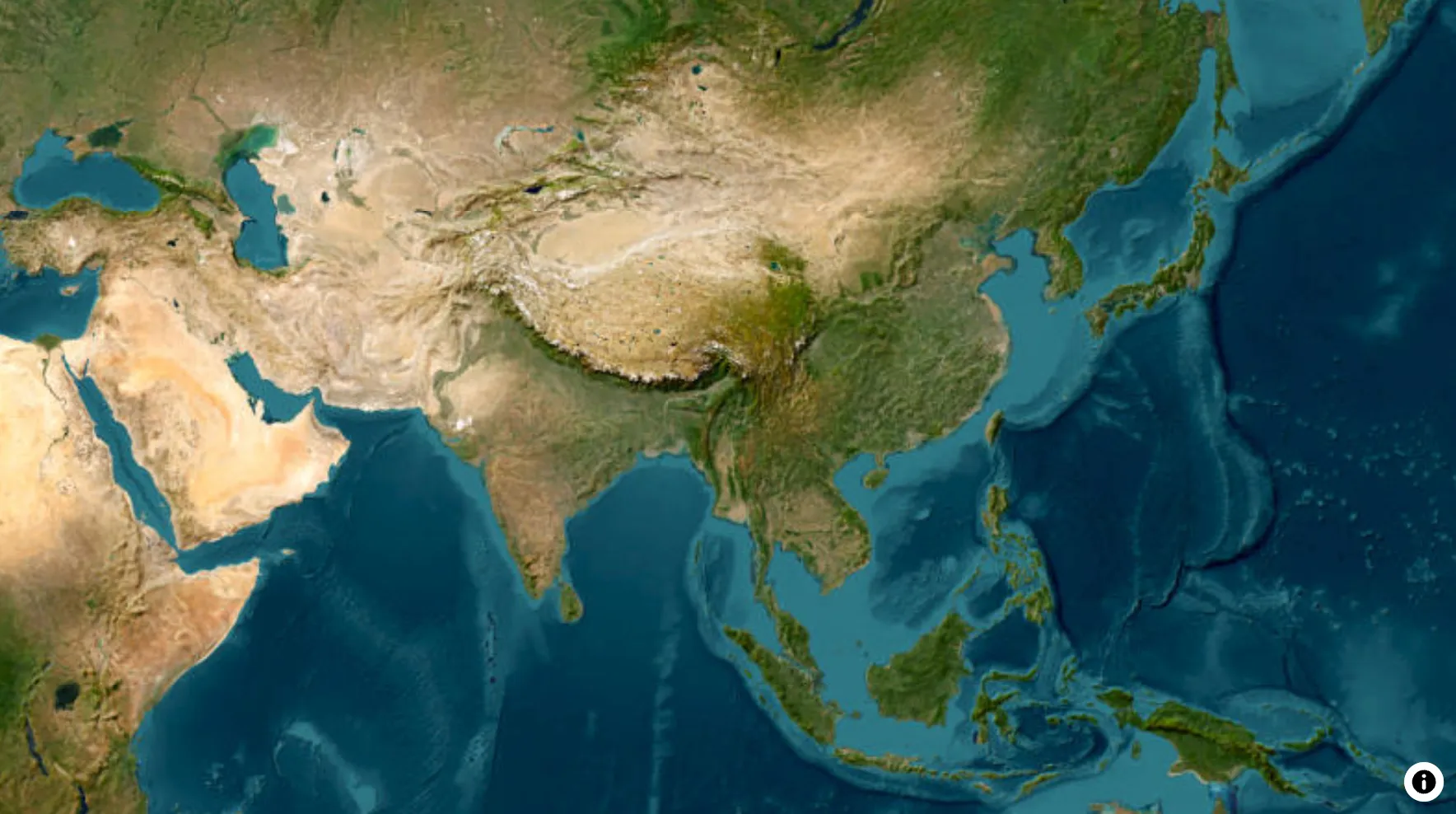
- Open the studio. Pick the flat map for a trip inside one country or region. Pick a style: satellite looks like the real land, a light or vintage style reads like a road atlas.
- Add a Fly to step on the first stop, so the video opens where the trip starts.
- Add a Route step. Fill in From with the start and To with the last stop.
- Click + Add waypoint for each stop in between. The line bends through each one.
- Set Route mode to Car. The line now follows real roads instead of a straight line.
- Open Edit route style and pick the Road trip look. It gives the line a warm color, names each stop and adds a small bounce when the car arrives.
- In the Head tab, set Head to Icon and pick a car from the 3D quick pick row. A 3D model reads better than a flat emoji, and it turns with the road.
- Click Follow this route with the camera. This adds a Fly along step that rides the line, so the camera stays on the car.
- Play the preview. Change the duration until each leg feels right.
- Export an MP4 in 16:9 for YouTube or 9:16 for Shorts, Reels and TikTok.
The Route action guide shows every setting in that panel.
Pacing: How Long Should Each Leg Take?
A road trip video fails in two ways: legs so fast the viewer cannot follow, or so slow they get bored.
- A short leg, under 100 km: 3 to 4 seconds.
- A normal day of driving: 5 to 7 seconds.
- A very long leg, like a full day across a desert: 7 to 9 seconds, with the camera following.
- Each stop: hold about 2 seconds, so the name can be read.
One journey per Route step works best. If you want a pause and a label at each stop, use one Route step per day. Each step then has its own duration and its own look.
Mixing Road Legs With Ferry, Rail or Flight
Many trips are not only driving. A Route step lets you set the travel mode per leg:
- Car: real roads.
- Sea: a sea route that goes around land, for ferries.
- Rail: for train legs.
- Air: a straight or curved line, for flights.
- Bike and Walk: for cycling and walking legs.
Each mode has its own look, so a viewer sees at a glance where the trip changed from car to ferry. The Greek island hopping demo does exactly this: a driving leg from Athens to the port, then ferry legs to Mykonos and Naxos.
For more on boats, see how to animate a ship or cruise route.
Prompts You Can Paste
A US road trip:
A European trip with a ferry:
Fly to Lisbon. Draw a driving route from Lisbon to Seville, then to Tarifa. Take the ferry from Tarifa to Tangier. Label each stop and pause 2 seconds on Tangier.
A day-by-day trip:
Show Scotland. Day 1: drive from Edinburgh to Inverness. Day 2: drive from Inverness to the Isle of Skye. Add a label "Day 1" and "Day 2" at each stop.
A classic route:
Draw Route 66 as a driving route from Chicago to Santa Monica, through St. Louis, Oklahoma City, Amarillo, Albuquerque and Flagstaff, with a 3D car and the camera following it.
The AI turns each prompt into steps. You can then change the car, the colors or the duration of any leg by hand.
Tips for a Clear Road Trip Video
- Open wide, then go close. Show the whole region for a second so viewers know where the trip is, then fly to the first stop.
- Name the stops, not the roads. Viewers remember "Moab" more than "I-70".
- Keep the line color strong against the map. A warm line on a satellite map, a dark line on a light map.
- Do not add a label for every small town. Name the stops where something happened.
- End on a wide view. Zoom out at the end so the whole route is on screen once.
- Use 3D terrain for mountain drives. A drive over the Alps or through the Rockies reads better when the mountains stand up. Turn on 3D terrain in the Effects panel (a Pro feature) and tilt the camera.
Ready to plan your own drive? Type your stops in order:
FAQ
Can Animaps follow real roads between my stops? Yes. Set the route mode to Car and the line follows the road network between each stop.
Can I import my GPX track from a GPS or Strava? No. Animaps does not import GPX, KML or activity files. You type the stops, and the route is built on the roads between them.
How many stops can a road trip have? Add a waypoint for each stop. For a long trip, use one Route step per day: each day then gets its own duration, label and pause.
Can I show a car driving along the route? Yes. In the Head tab, pick a car from the 3D quick pick row. It rides the tip of the line as it draws.
Can the camera follow the car? Yes. Click Follow this route with the camera. It adds a Fly along step that rides the line.
Related Articles:
Keywords: road trip map animation, road trip route video maker, animated road trip map, road trip map video, multi-stop route animation, driving route animation
Tags
Related reading
10 Ways Travel Bloggers Use Animated Maps (And How You Can Too)
Travel bloggers face a unique challenge: how do you make someone feel a journey they haven't taken? Static photos show destinations. Written stories describe experiences. But animated maps? They transport viewers into your journey, transforming passive readers into active participants following along your path. In 2026, animated maps have evolved from nice-to-have embellishments to essential storytelling tools.
Map Video Maker: How to Make a Map Video Online
A map video maker turns a map into a video file you can post or edit. Here is how to make one in Animaps from a single sentence, which shape and size to pick for YouTube, Shorts or a feed, how long it should run, and what each export costs.
Animaps vs TravelBoast: A Travel Video App or a Map Studio?
TravelBoast turns a trip into a short 3D travel video on your phone, with GPX import, photos at each stop and 250+ vehicles. Its subscription is $5.99 a month on the US App Store and unlocks 4K. Animaps runs in a browser, has no phone app and caps at 1440p, but covers borders, fills, labels and historical maps as well as routes. Your trip points to TravelBoast; a place or a story points to Animaps.
Browse every article in the Animaps blog.